
Imagine watching your favorite movie or sharing photos on two smart TVs at the same time, without any messy cables or complicated setups. Sounds amazing, right?
If you’ve ever wondered how to mirror two smart TVs wirelessly, you’re about to discover simple steps that make this possible. Whether you want to impress your guests or enjoy a bigger viewing experience, this guide will show you exactly how to connect your devices effortlessly.
Keep reading, and you’ll learn how to turn your home entertainment into something truly spectacular.
Requirements For Wireless Mirroring
Wireless mirroring lets you share your screen without cables. To mirror two smart TVs effectively, some key requirements must be met. These ensure smooth connection and clear display. Understanding these needs helps avoid common issues during setup.
Compatible Devices
Both smart TVs must support wireless mirroring technology. Common standards include Miracast, AirPlay, or Chromecast. Check your TV manuals or settings to confirm compatibility. Devices from the same brand often work better together. Older models might not support this feature.
Stable Wi-fi Network
A strong Wi-Fi connection is essential for wireless mirroring. Both TVs should connect to the same network. The router must provide good signal strength and speed. Weak or unstable Wi-Fi causes lag and interruptions. Use a 5 GHz band if possible for better performance.
Necessary Apps And Software
Some TVs need specific apps to enable mirroring. Check app stores for official mirroring apps from your TV brand. Update the TV firmware to the latest version for best compatibility. You might also need apps on your phone or computer to start mirroring.

Credit: www.samsung.com
Preparing Your Smart Tvs
Preparing your smart TVs is the first step to mirror them wirelessly. Both TVs must be ready to connect and share content smoothly. This preparation helps avoid connection problems and ensures clear display on both screens.
Follow these simple steps to get your smart TVs ready for wireless mirroring.
Enable Screen Mirroring Mode
Turn on the screen mirroring mode on both smart TVs. This mode allows the TVs to receive and send content wirelessly. Find this option in the settings menu, usually under “Network” or “Display.” Activating it sets your TVs to detect each other.
Update Tv Firmware
Check for firmware updates on each TV. Updates improve performance and fix bugs that may block mirroring. Go to the settings, then “About” or “Support,” and select “Check for Updates.” Install the latest version to ensure compatibility.
Connect To The Same Network
Connect both smart TVs to the same Wi-Fi network. A shared network lets the TVs communicate without interruptions. Use the settings menu to view and change the Wi-Fi connection. A stable network ensures smooth and fast mirroring.
Mirroring From A Smartphone
Mirroring your smartphone screen to two smart TVs at once can enhance your viewing experience. It lets you share videos, photos, and apps on multiple screens. This is useful for parties, presentations, or simply enjoying content in different rooms.
Smartphones have built-in tools and apps that simplify this process. Some methods require no extra software, while others use third-party apps for added features. Understanding these options helps you mirror efficiently and with fewer issues.
Using Built-in Casting Features
Most smartphones support casting directly to smart TVs. Android phones use the “Cast” feature found in settings or quick access menus. Apple devices use “AirPlay” to connect to compatible TVs.
Start by connecting your phone and both TVs to the same Wi-Fi network. Open the casting option on your phone. Select the first TV to mirror your screen. Repeat for the second TV. Some phones allow dual casting natively. Others may need extra steps.
Third-party Apps For Dual Mirroring
Apps can help if your phone or TVs don’t support dual casting. Popular apps include “ApowerMirror” and “Screen Share.” These apps connect to multiple TVs at once.
Download and install the app on your phone. Open the app and scan for available TVs. Select both TVs to start mirroring. These apps often offer extra controls like screen recording and resolution adjustments.
Troubleshooting Common Issues
Connection problems happen often. Check that your phone and TVs share the same Wi-Fi network. Restart devices to fix minor glitches. Ensure your TVs support the casting method you use.
Lag or delay may occur. Reduce the distance between devices for better signals. Close other apps on your phone to improve performance. Update your phone and TV software regularly to avoid bugs.
Mirroring From A Pc Or Laptop
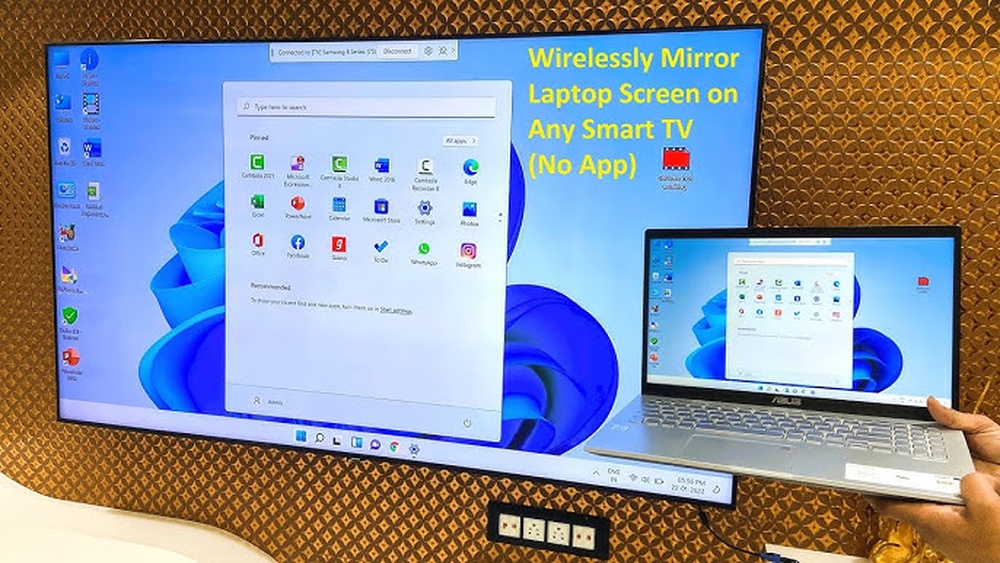
Mirroring your PC or laptop screen to two smart TVs wirelessly lets you share videos, presentations, or photos easily. It helps you enjoy content on bigger screens without messy cables. Different devices offer simple ways to connect and mirror your screen. Below are popular methods for Windows and Mac users, plus tips using streaming gadgets.
Using Windows Miracast
Windows devices support Miracast for wireless mirroring. Check if your PC and both smart TVs support Miracast. On your PC, press Windows + P keys. Select Connect to a wireless display. Choose the first TV from the list. To mirror to the second TV, repeat the steps or use a second Miracast adapter.
Miracast sends your screen directly over Wi-Fi. It works without internet but needs strong Wi-Fi signals. Adjust display settings for best picture quality. Mirroring multiple TVs may require extra hardware like splitters or adapters.
Using Airplay On Mac
Mac users can mirror screens using AirPlay. Make sure your Mac and smart TVs support AirPlay 2. Click the AirPlay icon in the menu bar. Select the first smart TV to start mirroring. For the second TV, use the same AirPlay menu and select it.
AirPlay sends high-quality video and audio over Wi-Fi. Both TVs must be on the same network as your Mac. You can also adjust screen resolution for smoother mirroring. AirPlay 2 allows streaming to multiple TVs at once.
Using Streaming Devices
Streaming devices like Chromecast or Roku can help mirror your laptop or PC to two TVs. Plug each device into a TV and connect them to the same Wi-Fi network. Use the casting feature in Chrome or the device app to select the first TV. Repeat for the second TV.
These devices support screen mirroring and streaming apps. They offer easy setup and often better compatibility. Streaming devices work well if your smart TVs lack built-in mirroring features.
Optimizing Streaming Quality
Optimizing streaming quality is key for a smooth wireless mirroring experience between two smart TVs. Good quality means clear images and no annoying delays. It also helps prevent buffering and screen lag. Simple steps can improve how your content looks and plays on both screens.
Adjusting Resolution Settings
Set the resolution on both TVs to match each other. Choose a resolution that your network supports well, like 720p or 1080p. Higher resolution uses more data and can cause lag. Lowering resolution helps keep the image sharp without freezing. Check your TV settings and select the best balance of quality and speed.
Reducing Latency
Latency is the delay between your device and TVs. It can cause the image to lag behind the sound. Close other apps on your device to free up resources. Restart your TVs and router to clear any temporary issues. Use a direct Wi-Fi connection rather than public or crowded networks. These steps cut down the delay and improve sync.
Managing Network Traffic
Network traffic affects streaming quality a lot. Avoid heavy downloads or uploads while mirroring. Limit the number of devices using your Wi-Fi during streaming. Place your router close to the TVs for a stronger signal. Use a dual-band router and connect to the 5 GHz band if possible. These actions reduce interference and keep streaming smooth.

Credit: kexidar.en.made-in-china.com
Advanced Tips And Tricks
Advanced tips and tricks help you get the most from wireless mirroring. These methods improve the quality and ease of your setup. They also solve common issues users face.
Explore how to use multi-room streaming solutions for better control. Learn to sync audio across TVs for a seamless sound experience. Discover how smart home devices can automate your mirroring process.
Using Multi-room Streaming Solutions
Multi-room streaming lets you play content on several TVs at once. Use devices like Google Chromecast or Apple AirPlay for this. These tools manage multiple screens without cables. They keep the video in sync on all TVs. This solution is ideal for large homes or parties. Set up each TV on the same Wi-Fi network. Then, start streaming from your phone or tablet. It makes watching shows or sports easier everywhere.
Syncing Audio Across Tvs
Audio sync is key for a great viewing experience. If sound is delayed on one TV, it feels off. Use apps or built-in settings on smart TVs to fix this. Some TVs support Bluetooth speakers that link together. This creates a surround sound effect across rooms. Test the audio on each TV before watching. Adjust the settings until the sound matches perfectly. This tip works well for movies and music.
Automating Mirroring With Smart Home Devices
Smart home devices can simplify wireless mirroring. Use voice assistants like Alexa or Google Assistant. Create routines that turn on mirroring automatically. For example, say “Start movie time,” and both TVs mirror your device. Some smart hubs allow scheduling mirroring at set times. This saves time and effort every day. Check compatibility between your TV and smart home gear. Automation makes wireless mirroring nearly hands-free.

Credit: www.youtube.com
Frequently Asked Questions
How Can I Mirror Two Smart Tvs Wirelessly?
You can mirror two smart TVs wirelessly using a dual-cast app or a compatible media streaming device. Ensure both TVs and your source device connect to the same Wi-Fi network for seamless mirroring.
Which Devices Support Wireless Mirroring On Dual Tvs?
Most modern smart TVs from brands like Samsung, LG, and Sony support wireless mirroring. Devices with Miracast, AirPlay, or Chromecast built-in also enable dual TV mirroring.
What Apps Help Mirror Content To Two Smart Tvs?
Apps like AirScreen, ApowerMirror, and LetsView support mirroring to multiple smart TVs. These apps allow simultaneous streaming by connecting your device to both TVs over Wi-Fi.
Is Wi-fi Strength Important For Wireless Tv Mirroring?
Yes, strong and stable Wi-Fi is crucial for smooth wireless mirroring. A weak signal can cause lag, buffering, or connection drops between your device and smart TVs.
Conclusion
Mirroring two smart TVs wirelessly is easier than it seems. Follow the steps carefully, and you will succeed. Ensure both TVs connect to the same Wi-Fi network. Use compatible apps or built-in features for smooth streaming. Small adjustments might be needed for the best picture quality.
Enjoy sharing your favorite shows or videos on both screens. Wireless mirroring saves time and avoids messy cables. Try it today and see how simple it can be. Your viewing experience will become more flexible and fun.