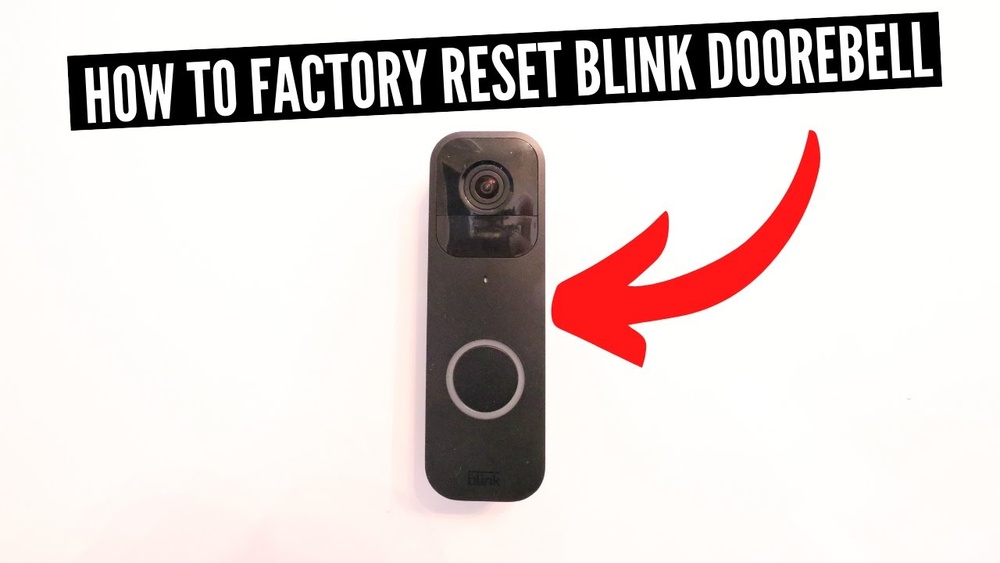

Is your Blink Video Doorbell acting up or not responding as it should? Sometimes, the easiest fix is to start fresh with a factory reset.
But you might be wondering, how exactly do you reset your device without losing important settings or data? In this guide, you’ll learn simple, clear steps to factory reset your Blink Video Doorbell quickly and safely. By the end, you’ll have your doorbell running smoothly again, giving you peace of mind and full control over your home security.
Keep reading—you’re just a few clicks away from a fresh start!

Credit: site-craft.net
Blink Video Doorbell Basics
The Blink Video Doorbell is a smart device that helps keep your home safe. It shows live video and alerts you if someone is at the door. Understanding its basics makes it easier to use and troubleshoot.
Resetting the doorbell can fix many issues. Before resetting, knowing the key features and the right time to reset is important.
Key Features
The Blink Video Doorbell has a wide-angle camera. It records video in HD quality. Motion detection sends alerts to your phone. It works with Alexa for voice control. The device runs on batteries, so no wires are needed. It stores video clips in the cloud for easy access.
When To Reset
Resetting helps if the doorbell stops working. It can fix connection problems with Wi-Fi. If the doorbell does not send alerts, try a reset. A reset clears settings and lets you set up again. Use reset if you change your Wi-Fi or move the device. Do not reset unless necessary, as it erases data.
Preparing For Reset
Preparing for a factory reset of your Blink Video Doorbell helps avoid problems later. It makes the reset smoother and safer. Taking simple steps first saves time and effort. Follow these easy tips to get ready before starting the reset process.
Backup Important Data
Save all your video clips and settings before resetting. The reset deletes everything on the doorbell. Check your Blink app for saved videos. Download any clips you want to keep. This step protects your important recordings from loss.
Check Battery Level
Ensure the doorbell has enough battery power. A reset needs sufficient charge to complete. Low battery can cause the device to fail during reset. Replace or recharge batteries if needed. This prevents interruptions and errors.
Gather Necessary Tools
Get the tools ready before starting the reset. You may need a small screwdriver or pin. Check your doorbell’s manual for specific tools. Having tools on hand speeds up the reset. It also avoids frustration during the process.
Step-by-step Factory Reset
Resetting your Blink Video Doorbell can solve many issues. It clears old settings and restores the device to its original state. This step-by-step guide helps you reset your doorbell safely and easily. Follow each step carefully to avoid mistakes.
Locate Reset Button
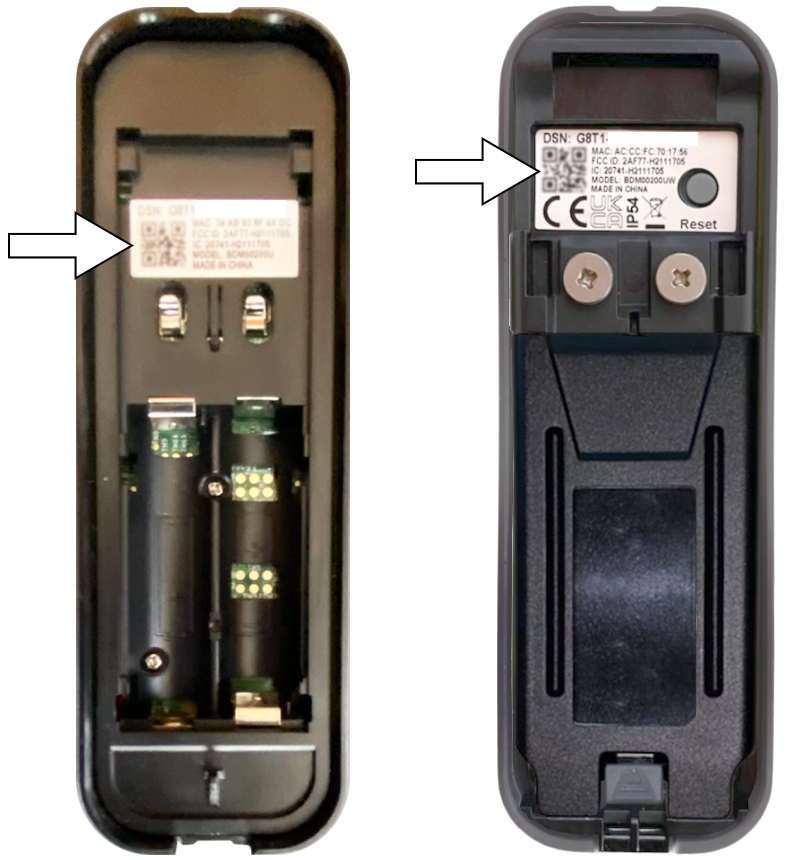
First, find the reset button on your Blink Video Doorbell. It is usually a small hole or button on the back or side. You may need a paperclip or pin to press it. Make sure the device is powered on before you start.
Perform Reset Sequence
Press and hold the reset button for about 10 seconds. Keep holding until the device’s light blinks or changes color. This shows the reset process has started. Release the button once you see the light signal.
Wait For Confirmation
After releasing the button, wait for the doorbell to reboot. The light will flash or turn solid to confirm the reset. This can take up to a minute. Once done, your Blink Video Doorbell is ready to set up again.
Credit: support.blinkforhome.com
Post-reset Setup
After you factory reset your Blink Video Doorbell, the next step is to set it up again. This process helps your doorbell work properly with your home network and preferences. Follow these simple steps to get started quickly and smoothly.
Reinstall Blink App
First, download and install the Blink app on your phone. Use the app to connect your doorbell to your account. Log in with your email and password. The app guides you through the setup process step-by-step. Make sure you have a stable internet connection during this step.
Reconnect To Wi-fi
Next, connect your doorbell to your home Wi-Fi network. Choose your Wi-Fi name in the app and enter the password. A strong Wi-Fi signal is important for video streaming and notifications. Wait for the doorbell to confirm the connection before moving on.
Customize Settings
Finally, adjust the doorbell settings to match your needs. Set motion detection sensitivity and notification preferences. You can also customize the video quality and privacy options. Take time to explore these settings for the best experience.
Troubleshooting Reset Issues
Resetting your Blink Video Doorbell can fix many common problems. Sometimes, the reset process does not work as expected. This section helps you solve issues during reset. Follow these tips to get your device back on track quickly.
Reset Not Working
First, check if you hold the reset button long enough. Press and hold the button for at least 10 seconds. Release it only after the LED light blinks. If nothing happens, try using a different finger or tool.
Make sure the doorbell has power. A dead battery can stop the reset process. Replace the batteries if needed and try again. Also, remove any dirt or debris around the button.
Device Not Responding
Sometimes the doorbell may not respond after reset. Check your Wi-Fi connection strength near the doorbell. Weak signals can cause the device to freeze. Move your router closer or use a Wi-Fi extender.
Try restarting your router. Power it off for 30 seconds, then turn it back on. After the router restarts, attempt the reset process once more.
Contacting Support
If none of these steps work, it is time to contact Blink support. They can guide you with advanced solutions. Have your device information ready before calling.
Explain your issue clearly. Mention what troubleshooting steps you already tried. Support may offer a replacement if your doorbell is faulty.

Credit: www.youtube.com
Tips For Maintaining Blink Doorbell
Maintaining your Blink Video Doorbell helps keep it working well for a long time. Simple care steps improve performance and security. Follow these easy tips to protect your device and home.
Regular Updates
Keep your Blink Doorbell’s software updated. Updates fix bugs and add new features. Check the Blink app often for update alerts. Install updates as soon as possible. This keeps your doorbell running smoothly and safely.
Battery Care
Use high-quality batteries for better performance. Replace batteries before they run out completely. Avoid mixing old and new batteries together. Remove batteries if you won’t use the doorbell for a long time. Proper battery care extends your device’s life.
Security Best Practices
Use a strong password for your Blink account. Change passwords regularly to improve security. Enable two-factor authentication if available. Avoid sharing your account details with others. Secure your home network to protect your video feed from hackers.
Frequently Asked Questions
How Do I Factory Reset My Blink Video Doorbell?
To factory reset, press and hold the setup button for 20 seconds. Release it once the light blinks red. This erases all settings and reconnects your doorbell to the app for fresh setup.
What Happens After A Blink Video Doorbell Reset?
A factory reset deletes all saved settings, videos, and Wi-Fi info. Your doorbell returns to its original state, requiring a new setup through the Blink app.
Can I Factory Reset Blink Doorbell Without The App?
No, you need the Blink app for full setup after a reset. The reset button erases settings, but the app reconnects your device and manages configurations.
How Often Should I Factory Reset My Blink Doorbell?
Factory reset only when troubleshooting issues or selling your device. Regular resets are unnecessary and may cause data loss. Use it as a last resort for problems.
Conclusion
Resetting your Blink Video Doorbell clears old settings fast. This helps fix problems and refresh the device. Always follow steps carefully for a smooth reset. After reset, set up the doorbell as new. Keep your device updated for best performance.
A simple reset can save time and hassle. Enjoy clear video and reliable alerts again. Resetting is easy and keeps your doorbell working well.