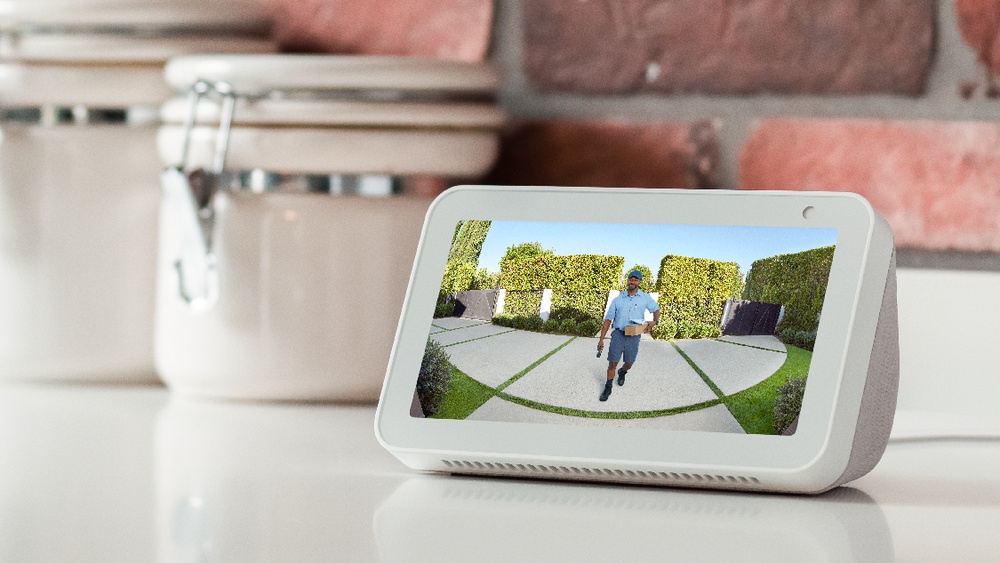

Want to make your home smarter and more secure? Adding your Ring Video Doorbell to Alexa can do just that.
Imagine seeing who’s at your door without moving from your couch or even your bed. With simple steps, you can connect these two powerful devices and enjoy hands-free control over your front door. Keep reading, and you’ll find out exactly how to set it up quickly and easily—no tech skills needed!
Credit: www.reviewed.com
Setup Ring Video Doorbell
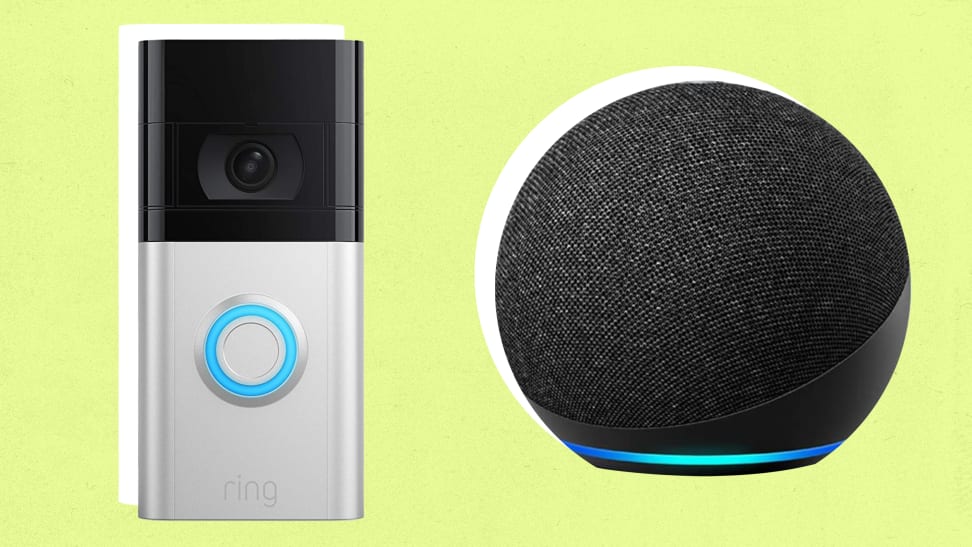
Setting up your Ring Video Doorbell is the first step to enjoy smart home security. Follow simple steps to get your doorbell ready to use with Alexa. This guide covers charging, installing, and connecting your device to Wi-Fi.
Charge And Install The Doorbell
Start by fully charging your Ring Video Doorbell. Use the charging cable that comes with the device. A full charge ensures longer use without interruptions.
After charging, choose a good spot near your front door. The location should have a clear view of your entrance. Use the mounting tools included in the package to secure the doorbell firmly.
Check that the doorbell button is easy to reach. Avoid places with direct sunlight or heavy rain exposure. Proper installation helps your device work well and last longer.
Connect To Wi-fi Network
Next, connect your Ring Video Doorbell to your home Wi-Fi. Open the Ring app on your smartphone or tablet. Follow the app instructions to find your device.
Select your Wi-Fi network and enter the password carefully. Make sure the signal is strong where the doorbell is installed. A stable connection keeps your video feed clear and responsive.
Wait for the app to confirm the connection. Your doorbell is now online and ready to use with Alexa. This step ensures you can access live video and alerts anytime.
Prepare Alexa Device
Preparing your Alexa device is the first step to connect your Ring Video Doorbell. A ready Alexa device ensures smooth setup and better performance. Follow simple steps to get your Alexa device ready for the Ring Doorbell.
Ensure Alexa Is Online
Check that your Alexa device is connected to Wi-Fi. Without internet, Alexa cannot communicate with the Ring Doorbell. Use the Alexa app or ask Alexa, “Are you connected?” to confirm. Make sure the Wi-Fi signal is strong and stable. This helps avoid interruptions during setup and use.
Update Alexa App
Open the Alexa app on your smartphone or tablet. Check for updates in the app store. An updated app includes the latest features and bug fixes. Using the newest version improves compatibility with the Ring Doorbell. Update the app before starting the device connection process.
Enable Ring Skill On Alexa
To use your Ring Video Doorbell with Alexa, you must enable the Ring skill first. This allows Alexa to communicate with your Ring device. Enabling the skill is simple and only takes a few steps.
Open Alexa App
Start by opening the Alexa app on your smartphone. The app is available for both Android and iOS. Make sure you are signed in with your Amazon account.
Search And Enable Ring Skill
Tap the menu icon and select “Skills & Games.” Use the search bar to find the Ring skill. Once found, tap “Enable” to add it to your Alexa account.
Link Ring Account
After enabling, the app will ask you to link your Ring account. Enter your Ring login details and allow permissions. This connects your Ring devices with Alexa for smooth use.
Discover Devices
Discovering devices is a key step to connect your Ring Video Doorbell with Alexa. This process helps Alexa find your doorbell so you can control it with voice commands. It is quick and easy to do within the Alexa app.
Run Device Discovery
Open the Alexa app on your phone or tablet. Go to the Devices tab at the bottom. Tap the “+” icon in the top right corner. Select “Add Device” from the list. Choose “Doorbell” as the device type. Then pick “Ring” from the brand options. Alexa will start scanning for your Ring Video Doorbell. Keep your doorbell powered and nearby during this step. Wait a few moments for the app to find your device.
Verify Doorbell Connection
After discovery, check if the doorbell appears in the Devices list. Tap on it to confirm it works. Try saying, “Alexa, show me the front door” to test the video feed. If the video shows, your doorbell is connected correctly. If not, repeat the discovery process or restart your Ring doorbell. This ensures Alexa recognizes your device fully.
Customize Alexa Settings
Customizing Alexa settings helps you control how your Ring Video Doorbell works with Alexa. It makes your smart home more personal and easy to use. You can choose how and when Alexa alerts you about visitors. These settings improve your experience and keep you informed in real time.
Set Up Notifications
Start by opening the Alexa app on your phone. Go to the Devices tab and select your Ring Video Doorbell. Find the Notifications section. Turn on Doorbell Press Notifications. This lets Alexa tell you when someone presses your doorbell.
You can also enable Motion Detection Alerts. Alexa will notify you if the doorbell senses movement. Adjust the notification sounds and volume to suit your preference. These alerts help you stay aware without looking at your phone.
Configure Doorbell Announcements
Doorbell Announcements let Alexa speak when someone is at your door. In the Alexa app, open the Ring device settings. Turn on Doorbell Announcements. Alexa will say “Someone is at the front door” or similar phrases.
You can customize which Alexa devices make these announcements. Choose specific Echo speakers or all devices in your home. This feature allows you to hear the doorbell even if you are in another room.

Credit: totalplumbingfl.com
Use Alexa With Ring Doorbell
Using Alexa with your Ring Video Doorbell makes home monitoring easier. Alexa helps you see and talk to visitors without moving from your spot. This hands-free feature adds comfort and security to your daily routine.
Alexa works well with Echo Show devices and other Alexa-enabled gadgets. Linking your Ring Doorbell to Alexa lets you control it by voice commands. Let’s explore how to use Alexa with your Ring Doorbell.
View Live Feed On Echo Show
Ask Alexa to show the front door camera live on your Echo Show. Just say, “Alexa, show me the front door.” The video appears instantly on your screen. You can watch visitors or check for deliveries anytime. This feature helps you stay aware without opening the app.
Echo Show’s clear display gives good video quality. It works even if you are busy cooking or working. The live feed keeps you connected to your home easily and quickly.
Answer Doorbell Via Alexa
Alexa lets you talk to visitors through your Ring Doorbell. When someone rings, Alexa announces it on your devices. You can say, “Alexa, answer the door,” to start talking. This way, you can greet guests without going to the door.
It’s useful for safety and convenience. You can check who is outside before opening the door. Also, you can give instructions to delivery people or visitors easily.
Troubleshooting Tips
Sometimes, your Ring Video Doorbell may not work well with Alexa. This can cause frustration. Troubleshooting helps fix common problems quickly. Follow these simple tips to solve issues and enjoy smooth use.
Fix Connection Issues
Check your Wi-Fi signal strength near your doorbell. Weak signals cause connection drops. Restart your router and Ring device to refresh the link. Make sure your Ring and Alexa apps are updated. Disable VPNs or firewalls that may block connections. Re-link your Ring account in the Alexa app if needed.
Resolve Notification Problems
Verify notification settings on both Ring and Alexa apps. Enable alerts for motion and doorbell rings. Check your phone’s Do Not Disturb mode is off. Restart the Alexa device to reset notifications. Clear cache in the Alexa app to fix bugs. Confirm your Alexa device supports Ring notifications.
Credit: www.asurion.com
Frequently Asked Questions
How Do I Connect Ring Video Doorbell To Alexa?
To connect, open the Alexa app, go to Skills & Games, search for Ring, and enable it. Then, link your Ring account and discover devices in the app. Your doorbell will now work with Alexa-enabled devices.
Can Alexa Show Ring Doorbell Video On Echo Show?
Yes, Echo Show devices can display live Ring doorbell video. Just say, “Alexa, show the front door,” and the video feed appears instantly on your Echo Show screen.
What Alexa Commands Work With Ring Video Doorbell?
You can ask Alexa to show live video, announce visitors, and arm or disarm Ring devices. Commands like “Alexa, show front door” or “Alexa, is the front door open? ” work seamlessly.
Is Ring Video Doorbell Compatible With All Alexa Devices?
Ring Video Doorbell works best with Alexa devices featuring a screen, like Echo Show. Basic Alexa speakers support announcements but can’t show video footage.
Conclusion
Adding your Ring Video Doorbell to Alexa makes home monitoring easy. You can see visitors and talk to them through your Echo device. Just follow the simple steps to connect both devices. This setup helps keep your home safer every day.
Enjoy hands-free control and quick access to your doorbell. Start using Alexa with your Ring doorbell today for better convenience.