Are you having trouble with your smart lock door? Maybe it’s not responding, or you need to set it up again for better security.
Knowing how to reset your smart lock door can save you time, frustration, and even avoid costly locksmith visits. In this guide, you’ll discover simple steps to get your smart lock working like new. Keep reading, and by the end, you’ll feel confident handling your smart lock reset all on your own.

Credit: cnyglock.com
Types Of Smart Locks
Smart locks offer various ways to secure your door. They differ in technology and how you control them. Understanding these types helps in choosing the right lock. Each type has unique features and reset methods.
Keypad Locks
Keypad locks use a code to open the door. You enter numbers on a small screen or buttons. These locks are easy to use and do not require a key. Resetting often involves entering a master code or pressing a reset button inside.
Bluetooth Locks
Bluetooth locks connect to your phone via Bluetooth. They unlock when your phone is near. You can also lock or unlock the door remotely. Resetting may require using the app or pressing a button on the lock.
Wi-fi Enabled Locks
Wi-Fi locks connect to your home network. They allow remote access from anywhere. You can control them with a smartphone app. Resetting usually needs app access or a physical reset on the lock.
Biometric Locks
Biometric locks use fingerprints or other body data. They recognize authorized users instantly. These locks offer high security without keys or codes. Resetting can involve reprogramming fingerprints or pressing a reset switch.
Reasons To Reset Your Smart Lock
Resetting a smart lock is necessary for several important reasons. It helps maintain security and ensures smooth operation. Knowing when and why to reset can save time and prevent frustration. Below are common situations that require resetting your smart lock.
Forgotten Passcodes
Forgetting your smart lock passcode is common. Without the code, you cannot access your home. Resetting the lock clears old passcodes. This allows you to set a new, easy-to-remember code. It restores your access quickly and safely.
Security Breach
Suspicious activity or a break-in risk demands immediate action. Resetting your smart lock removes any unknown codes. It stops unauthorized access to your property. Resetting also refreshes security settings to protect your home.
Malfunction Or Glitches
Smart locks can face technical issues or glitches. These problems may cause the lock to freeze or not respond. Resetting the device can fix many errors. It helps restore normal function without extra tools.
New User Setup
Adding new family members or tenants requires updating access. Resetting the lock removes old codes and users. You can then program new passcodes easily. This keeps control over who can enter your home.
Preparing To Reset
Before resetting your smart lock door, proper preparation is essential. It ensures a smooth reset process and prevents data loss or device issues. Taking a few steps beforehand saves time and hassle later.
Gather Necessary Tools
Collect all tools needed for the reset. This may include a small screwdriver, a paperclip, or the lock’s manual. Having these ready avoids interruptions during the reset process. Check your lock’s instructions for any special tools required.
Backup Important Settings
Save any important settings or codes stored in your smart lock. Some locks allow you to back up data via an app. If yours does, create a backup before resetting. This keeps your access information safe and easy to restore.
Check Battery Status
Ensure the smart lock’s batteries have enough power. Weak batteries can cause the reset to fail. Replace old batteries with fresh ones before starting. A fully charged lock performs better and avoids unexpected shutdowns.
Credit: dailyplanetvt.com
Reset Methods By Lock Type
Resetting a smart lock varies by the type of lock you own. Each lock type has its own reset method. Knowing the right way helps avoid damage. It also saves time and effort. Here are common reset methods based on lock types.
Manual Reset Button
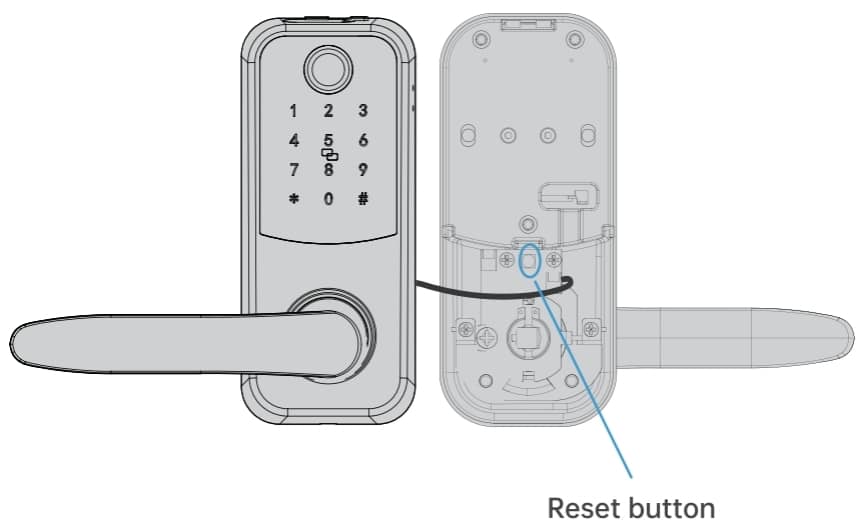
Many smart locks have a small reset button. Usually, it is inside the battery compartment or on the lock’s side. Press and hold this button for 10-15 seconds. The lock will beep or flash to confirm the reset. This method clears all settings and returns the lock to default.
App-based Reset
Some smart locks allow reset through a mobile app. Open the lock’s app on your phone. Navigate to settings or device management. Find the reset or factory reset option. Follow the on-screen instructions to complete the reset. This method is simple and does not require physical access to the lock.
Factory Reset Via Keypad
Keypad locks offer a factory reset using the keypad itself. Enter a specific reset code or sequence. This code is often in the user manual. After entering the code, press the reset button or hold a key. The lock will erase all saved codes and settings. This method is quick but needs knowing the reset code.
Using Manufacturer’s Software
Certain smart locks need special software from the manufacturer. Download the software on your computer. Connect the lock via USB or Bluetooth. Use the software to find the reset option. Follow the steps provided by the software to reset the lock. This method ensures a proper reset without errors.
Step-by-step Reset Guide
Resetting your smart lock can solve many issues. It clears old settings and errors. Follow this simple step-by-step reset guide to restore your lock’s default setup. Each step is easy to do and explained clearly.
Access The Lock Panel
First, find the lock panel on your smart lock. This is usually on the inside part of the door. Remove the cover gently to reveal buttons or a reset hole. Make sure you have good light to see the panel clearly.
Initiate Reset Mode
Press and hold the reset button for about 10 seconds. Use a small tool like a paperclip if needed. You will hear a beep or see a light flash. This means the lock is entering reset mode. Do not release the button too soon.
Confirm Reset Process
After the beep, release the reset button. The lock may blink or sound another beep. This confirms the reset is successful. Wait a few seconds for the lock to finish the process. Do not try to open the door yet.
Reconfigure Lock Settings
Now, set up your lock again. Follow the instructions in your lock’s manual. Create a new PIN or connect to your phone app. Test the lock to make sure it works properly. This step secures your door again.
Post-reset Security Tips
Resetting your smart lock is a good start. It wipes old settings and clears previous access codes. Yet, extra steps help keep your home safe after the reset. Follow these tips to protect your smart lock from threats.
Set Strong Passcodes
Choose passcodes that are hard to guess. Use a mix of numbers and letters. Avoid common sequences like “1234” or “0000.” Longer passcodes are harder to crack. Change default codes right after resetting the lock.
Update Firmware
Smart locks use software called firmware. This software controls how the lock works. Check for updates regularly. Updates fix security holes and add new features. Install updates as soon as they are available.
Enable Two-factor Authentication
Add an extra layer of security with two-factor authentication. This means you need two ways to prove your identity. Usually, a password plus a code sent to your phone. It makes it much harder for hackers to break in.
Regularly Change Access Codes
Change your access codes every few months. This reduces the chance of old codes being used by others. Remove codes of people who no longer need access. Keeping codes fresh keeps your lock safer over time.
Troubleshooting Common Issues
Troubleshooting common issues with your smart lock door can save time and frustration. Many problems have simple fixes. This section covers the most frequent issues users face during reset and how to solve them quickly.
Reset Not Initiating
Sometimes the reset process does not start. Check if you follow the reset steps exactly. Press and hold the reset button for the required time. Make sure you release it only after the indicator light flashes. If the button feels stuck, try pressing it gently.
Lock Not Responding
The lock may not respond to commands after reset attempts. Confirm the lock has power. Check for any physical obstructions. Clean the lock’s sensors and keypad. Restart the lock by removing and reinserting the batteries. Wait a few seconds before trying again.
Connectivity Problems
Smart locks rely on wireless connections. Connection issues can prevent reset or control. Move closer to the lock to improve signal strength. Restart your Wi-Fi router or Bluetooth device. Check your phone’s settings to ensure Bluetooth or Wi-Fi is enabled. Update the lock’s app to the latest version.
Battery Replacement
Weak batteries cause many lock problems. Replace old batteries with fresh, recommended types. Remove the battery cover carefully. Insert new batteries in the correct direction. Test the lock after replacement. Keep spare batteries nearby to avoid interruptions.
When To Contact Support
Knowing when to contact support for your smart lock door is important. Some problems need expert help to fix safely. Trying to solve serious issues alone can cause more damage. Support teams have the right tools and knowledge to assist you. They can guide you step-by-step or arrange a repair if needed. Here are key situations to reach out to support.
Persistent Malfunctions
Smart lock keeps acting up despite several reset attempts? Persistent malfunctions show deeper problems. These can include software bugs or connection errors. Support can run diagnostics and offer solutions not found in manuals. They help avoid constant failures that risk your security.
Hardware Damage
Physical damage affects smart lock performance. Cracks, broken buttons, or loose parts need professional attention. Support can advise on repairs or replacements. Trying to fix hardware issues yourself can void warranty or cause injury.
Lost Access To Admin Account
Losing admin account access blocks lock management. This means you cannot change settings or add users. Support can verify your identity and help recover your account. They keep your system secure while restoring your control.

Credit: store.blackview.hk
Frequently Asked Questions
How Do I Reset My Smart Lock Door?
To reset your smart lock, locate the reset button usually inside the battery compartment. Press and hold it for 10 seconds until the LED blinks. This clears all settings and restores factory defaults. Always check your lock’s manual for specific reset instructions.
Can I Reset A Smart Lock Without A Password?
Yes, you can reset most smart locks without a password. Use the physical reset button found inside the lock or follow the manufacturer’s reset procedure. This removes stored codes and connects the device back to default settings.
Why Is My Smart Lock Not Resetting Properly?
Improper resetting may be due to low battery power or incomplete button presses. Ensure your batteries are fresh and follow the reset steps exactly. If issues persist, consult your lock’s manual or contact customer support for help.
Will Resetting My Smart Lock Erase All User Codes?
Yes, resetting your smart lock erases all saved user codes and settings. After reset, you must reprogram access codes and preferences to restore functionality. This step ensures security and privacy.
Conclusion
Resetting your smart lock door keeps your home safe and secure. Follow the steps carefully to avoid mistakes. Take your time and read the instructions well. After resetting, test the lock to make sure it works. Regular maintenance helps your lock last longer.
Stay calm if you face any issues; solutions are often simple. Keeping your smart lock updated protects your property and peace of mind. Remember, safety starts with good habits and simple actions.