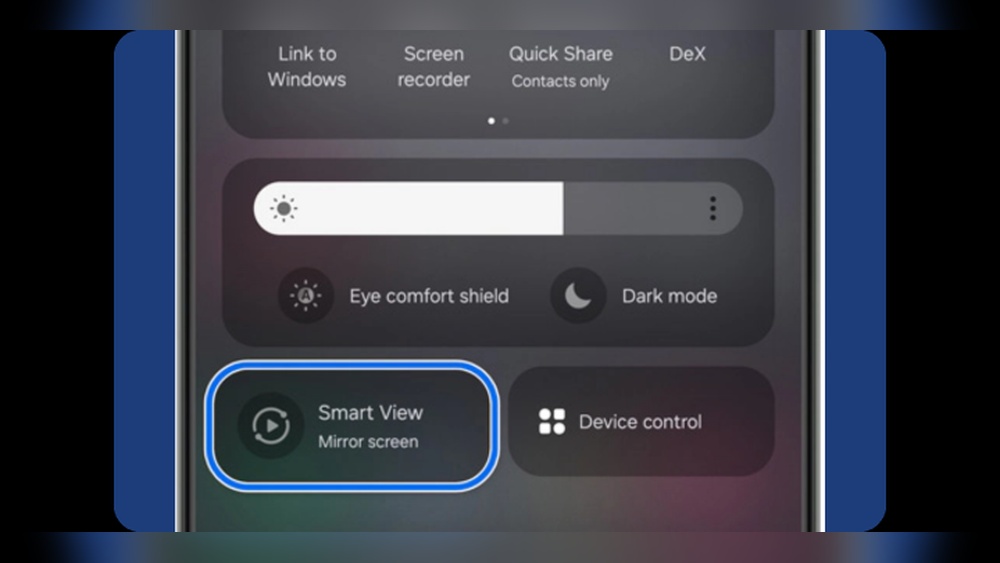

Want to share your phone or laptop screen on your big Samsung TV without any hassle? Mirroring with Samsung Smart View makes it easy and fun to watch videos, show photos, or even play games right on your TV.
If you’ve ever wondered how to set it up quickly and smoothly, you’re in the right place. Keep reading, and you’ll discover simple steps to mirror your device like a pro—no technical skills needed. Let’s get your screen on the big screen!
Credit: www.samsung.com
Samsung Smart View Basics
Samsung Smart View is a simple tool to share your phone or tablet screen on your TV. It lets you watch videos, view photos, and play games on a bigger screen. The app creates a connection between your mobile device and Samsung Smart TV.
This makes it easy to enjoy content without cables or complicated setups. Understanding the basics helps you use the app smoothly and get the best experience.
What Is Samsung Smart View
Samsung Smart View is an app for screen mirroring. It allows you to display your mobile screen on a Samsung TV. You can control your TV from your mobile device using this app. It supports video playback, photo viewing, and music streaming. The app works over a Wi-Fi connection. No need for extra wires or adapters.
Supported Devices
Samsung Smart View works with Samsung Smart TVs made after 2014. It supports many Samsung Galaxy phones and tablets. The app is available on Android and iOS devices. Both smartphones and tablets can connect to the TV. Check your TV model and device compatibility before use. This ensures smooth connection and performance.
Preparing Your Devices
Getting your devices ready is the first step to mirror content using Samsung Smart View. Proper preparation helps avoid connection problems and makes the process smooth. Follow these simple steps to set up your devices correctly.
Both your smartphone or tablet and your Samsung Smart TV need to be on the same network. This is essential for the devices to find and connect to each other.
Check Network Connection
Ensure your TV and mobile device connect to the same Wi-Fi network. Open your device’s Wi-Fi settings and confirm the network name. On your Samsung TV, go to Settings > Network to check the connection. A strong, stable connection improves mirroring quality and reduces lag.
Enable Screen Mirroring On Tv
Turn on screen mirroring on your Samsung TV. Press the Source button on your remote. Select Screen Mirroring from the list. Your TV will now be discoverable by your mobile device. This step allows your phone or tablet to send content to the TV.
Steps To Mirror On Samsung Smart View
Mirroring your device to a Samsung Smart TV is simple with the Smart View app. The process lets you enjoy photos, videos, and apps on a bigger screen. Follow these easy steps to start mirroring quickly.
Connect Your Phone Or Tablet
Make sure your phone or tablet and Samsung TV are on the same Wi-Fi network. Check your device’s Wi-Fi settings to confirm this. A shared network is essential for the connection to work smoothly.
Launch The Smart View App
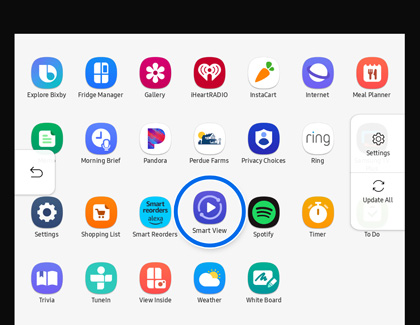
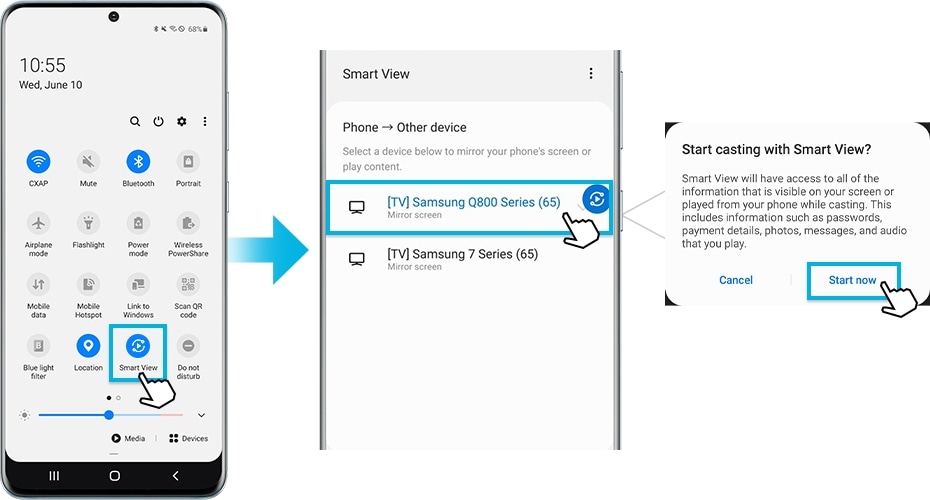
Open the Smart View app on your phone or tablet. If you do not have it, download it from the app store. The app will search for available Samsung TVs nearby.
Select Your Tv
From the list of devices, tap your Samsung Smart TV. The app may ask for permission to connect. Approve the request to continue.
Start Mirroring
Once connected, your device screen will appear on the TV. Play videos, show pictures, or use apps on the big screen. To stop mirroring, simply disconnect in the Smart View app.
Troubleshooting Common Issues
Mirroring on Samsung Smart View usually works smoothly. Sometimes, issues can appear. These problems can stop your screen from showing correctly. This section explains common problems and how to fix them quickly. Follow these tips to enjoy a better mirroring experience.
Connection Problems
Check if both devices use the same Wi-Fi network. A different network causes connection failure. Restart your router and devices to reset connections. Turn off Bluetooth and reconnect Smart View. Keep devices close to avoid weak signals. Update your phone and TV software for better compatibility.
App Crashes Or Freezes
Close the Smart View app and open it again. Clear the app cache in your device settings. Restart your phone to clear temporary bugs. Uninstall and reinstall Smart View if the problem stays. Make sure your device has enough free memory. Avoid running many apps at the same time.
Audio And Video Sync Issues
Restart both your phone and TV to reset the connection. Check the volume settings on both devices. Lower video quality can reduce lag and sync problems. Use a strong Wi-Fi signal to keep the stream smooth. Update the Smart View app to the latest version. Close other apps that use network or audio resources.
Alternative Streaming Methods
Samsung Smart View offers easy ways to mirror your device. But sometimes, you want other options. Alternative streaming methods help you share your screen or media in different ways. These methods work well for various devices and setups. They give you flexibility beyond the built-in features of Smart View.
Using Screen Cast
Screen Cast lets you wirelessly share your phone or tablet screen. Most Android devices support this feature. You can find Screen Cast in your device’s settings or quick menu. Tap it, then select your Samsung TV. The screen will appear on the big screen in seconds.
This method is simple and fast. It does not need extra apps or cables. The connection is stable on a strong Wi-Fi network. Screen Cast is perfect for streaming videos, photos, or apps.
Third-party Apps
Some apps help mirror your device to a Samsung TV. Apps like AirBeamTV, ApowerMirror, or LetsView offer good results. You need to install the app on your phone and sometimes on your TV.
These apps often add extra features. For example, some support screen recording or remote control. They work with both Android and iOS devices. Some apps are free, while others charge a small fee.
Wired Connections
Wired connections offer a stable and fast way to mirror screens. Using an HDMI cable with an adapter connects your phone or laptop to the TV. USB-C to HDMI or Lightning to HDMI adapters work well.
This method avoids Wi-Fi issues and lag. It is great for gaming or watching high-quality videos. Wired connections need the right cables and adapters for your device. Once connected, the TV shows exactly what appears on your device.
Credit: www.samsung.com
Tips For Smooth Streaming
Streaming content from your device to a Samsung Smart View works best when the connection is stable. Smooth streaming stops interruptions and pixelation. Small changes can improve your experience greatly. Follow these tips to keep your mirrored screen clear and fast.
Optimize Wi-fi Performance
Use a strong Wi-Fi signal for better streaming. Place your router close to your TV and device. Avoid walls or metal objects between them. Choose a less crowded Wi-Fi channel in your router settings. A faster internet plan can also help reduce lag and buffering.
Keep Devices Updated
Regular updates fix bugs and improve performance. Check your Samsung TV and smartphone for software updates. Install the latest version of the Smart View app. Up-to-date devices connect more smoothly and avoid crashes during streaming.
Close Background Apps
Background apps use memory and internet. Close apps you are not using on your smartphone or tablet. This frees up resources for Smart View. Streaming becomes faster and more stable with fewer apps running.
Credit: blog.airsquirrels.com
Frequently Asked Questions
How Do I Mirror My Phone On Samsung Smart View?
To mirror your phone, connect both devices to the same Wi-Fi. Open Samsung Smart View, select your TV, and tap “Start Mirroring. ” Your phone screen will appear on the TV instantly.
What Devices Support Samsung Smart View Mirroring?
Samsung Smart View supports most Samsung smartphones and tablets running Android 4. 4 or higher. It also works with Samsung Smart TVs from 2014 or later models.
Can I Mirror Content From Non-samsung Devices?
Yes, you can mirror from some non-Samsung Android devices using Smart View. However, compatibility varies, and performance may be limited compared to Samsung devices.
Why Is My Samsung Smart View Not Connecting?
Check that both devices are on the same Wi-Fi network. Restart the app and devices. Ensure your TV firmware and Smart View app are updated.
Conclusion
Mirroring on Samsung Smart View is simple and quick. Just follow the steps carefully, and you can share your screen easily. This feature helps you enjoy videos, photos, and apps on a bigger display. It works well for both work and fun.
Keep your devices connected to the same Wi-Fi for smooth mirroring. Try it today to see how easy screen sharing can be. Your Samsung Smart View experience will improve with practice. Enjoy the convenience of mirroring anytime you want.