
Are you tired of your Ring Video Doorbell ringing at the most inconvenient times? Maybe you want to enjoy some quiet or avoid constant notifications.
Whatever your reason, turning off your Ring Video Doorbell doesn’t have to be confusing or stressful. You’ll discover simple, step-by-step ways to silence your device quickly and easily. Keep reading to regain control over your doorbell and bring peace back to your home.

Credit: www.youtube.com
Powering Off The Ring Doorbell
Powering off the Ring Video Doorbell is simple. It helps save battery and stops alerts temporarily. Knowing how to turn it off can be useful during travel or maintenance. Two main ways exist to power off the device safely.
Using The Physical Button
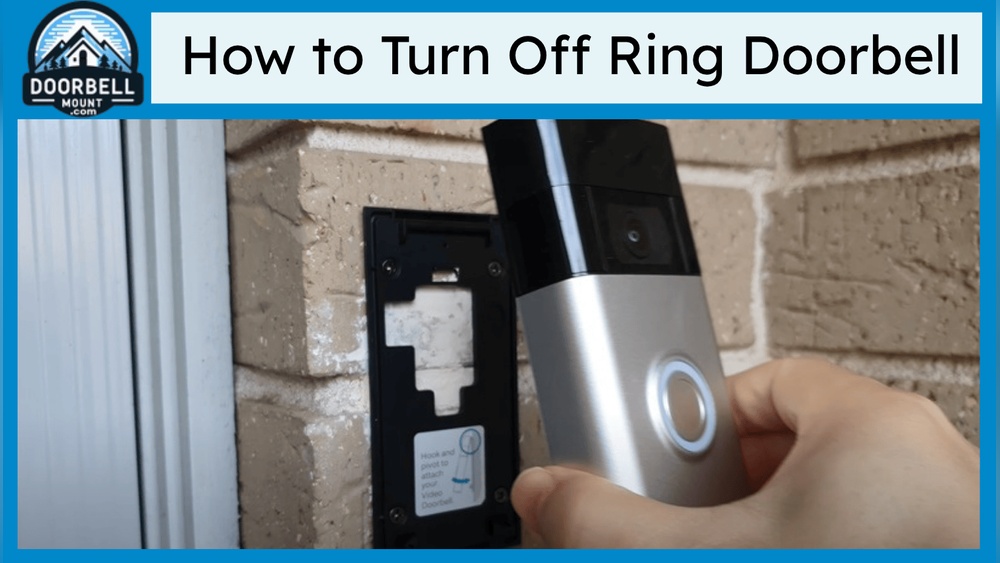
Most Ring Doorbell models have a physical button for power control. Press and hold this button for about 15 seconds. The light on the device will flash, showing it is turning off. Release the button and wait. The doorbell will shut down completely after a few moments.
This method is quick and does not require removing parts. It is best for a temporary power off. Use it to pause notifications or conserve battery during short periods.
Removing The Battery
Removing the battery is another way to turn off the Ring Doorbell. First, open the device’s cover carefully. Slide or lift out the battery pack. The doorbell will lose power immediately.
This method works well for longer periods without use. It also allows you to charge the battery separately. Remember to handle the battery gently to avoid damage. Put the battery back in place before turning the device on again.

Credit: thehousetech.com
Disabling The Device Via App
Disabling your Ring Video Doorbell through the app is quick and simple. The app gives control over alerts and notifications without unplugging the device. You can pause motion alerts or turn off notifications anytime. This flexibility helps you manage your device easily.
Pausing Motion Alerts
Open the Ring app on your phone. Select your doorbell from the device list. Find the “Motion Settings” option. Tap on “Motion Alerts.” Here, toggle the switch to pause alerts. This stops the doorbell from sending motion alerts temporarily. You can resume alerts with a simple tap later.
Turning Off Notifications
Go to the Ring app’s main menu. Choose “Device Settings” for your doorbell. Select “Notification Settings.” Turn off the notifications you want to stop. This stops all push notifications from the doorbell. You still get video and alerts inside the app.
Temporarily Disconnecting Power
Temporarily disconnecting power is the easiest way to turn off your Ring Video Doorbell. It stops the device from working without removing it. This method is useful during maintenance or if you want privacy for a short time.
Power disconnection can be done in two ways depending on your model. Wired Ring doorbells need different steps than battery models. Choose the right method to avoid damage.
Unplugging Wired Models
Wired Ring doorbells connect to your home’s electrical system. To turn off power, you must unplug the device carefully. First, remove the faceplate using a screwdriver. Then, disconnect the wires from the back.
Make sure to turn off power at the circuit breaker before unplugging. This prevents electric shock. After disconnecting, the doorbell will stop working until you plug it back in.
Using Circuit Breaker
Another way to turn off power is by using the circuit breaker. Find the breaker that controls the doorbell’s power. It is usually labeled or near your home’s main panel.
Flip the breaker switch to the off position. This cuts power to the doorbell and any other devices on that circuit. Check the doorbell to confirm it is off.
Turn the breaker back on to restore power. This method works well if you do not want to remove the doorbell.
Resetting The Doorbell
Resetting your Ring Video Doorbell can fix many common problems. It helps clear errors and refresh the device’s settings. This process can also stop unwanted notifications or fix connection issues.
There are two main types of resets: soft reset and hard reset. Each reset type serves a different purpose and has a different effect on your doorbell.
Soft Reset Steps
A soft reset restarts the device without deleting your settings. It is a quick way to refresh the doorbell.
- Locate the orange button on the back of the doorbell.
- Press and hold the button for 15 seconds.
- Release the button and wait for the light to flash.
- The doorbell will reboot automatically.
- After reboot, check if the issues are resolved.
Hard Reset Procedure
A hard reset restores the doorbell to factory settings. It deletes all your settings and data.
- Open the Ring app on your smartphone.
- Go to the device settings for your doorbell.
- Select the option to remove the device.
- Physically remove the doorbell from its mount.
- Press and hold the orange button for 20 seconds.
- Release the button and wait for the light to flash.
- Set up the doorbell again as a new device.
Troubleshooting Power Issues
Power issues can stop your Ring Video Doorbell from working properly. You may notice the device not turning on or losing charge quickly. Troubleshooting these problems helps keep your doorbell reliable and ready.
Check the doorbell’s power source first. It might be the battery or the wiring. Fixing these can solve many problems.
Battery Drain Solutions
The battery drains fast if the doorbell has many alerts or long video recordings. Lower the motion sensitivity to save power. Turn off unnecessary notifications in the app.
Use the Ring app to check battery status regularly. Charge or replace the battery if it stays low. Avoid extreme weather; it can reduce battery life.
Connectivity Problems
Weak Wi-Fi can cause power issues by making the doorbell work harder. Place the router closer or use a Wi-Fi extender for better signal.
Restart your router and doorbell to refresh connections. Keep firmware updated via the app to fix bugs and improve performance.
Credit: totalplumbingfl.com
Frequently Asked Questions
How Do I Turn Off My Ring Video Doorbell?
To turn off your Ring Video Doorbell, press and hold the orange button on the back for 15 seconds. This will power down the device until you turn it back on or recharge the battery.
Can I Disable Ring Doorbell Temporarily?
Yes, you can temporarily disable your Ring Doorbell by putting it in Sleep Mode via the Ring app. This stops notifications without fully powering off the device.
Does Turning Off Ring Doorbell Affect Video Recording?
Turning off your Ring Doorbell disables video recording and live streaming. The device stops capturing any activity until powered back on or reactivated.
How To Conserve Battery On Ring Doorbell?
To conserve battery, reduce motion sensitivity and lower video recording frequency through the Ring app settings. You can also disable Live View when not needed.
Conclusion
Turning off your Ring Video Doorbell is quick and simple. Just follow the steps carefully to avoid any issues. Remember to check the device’s power source or app settings first. Doing this helps protect your privacy when needed. Keep your device updated for the best experience.
Taking control of your doorbell settings gives peace of mind. You can always turn it back on whenever you want. Stay safe and enjoy using your Ring Doorbell on your terms.