
Have you ever found yourself locked out or worried someone else knows your smart lock code? Resetting your door code is easier than you think, and it’s the best way to keep your home secure.
In this guide, you’ll discover simple, step-by-step instructions to change your smart lock code quickly and safely. By the end, you’ll feel confident managing your lock’s security and protecting what matters most. Ready to take control of your smart lock?
Let’s get started.
Types Of Smart Locks
Smart locks come in different types. Each type offers unique features and ways to reset door codes. Knowing the types helps you reset codes correctly and keep your home secure.
Keypad Locks
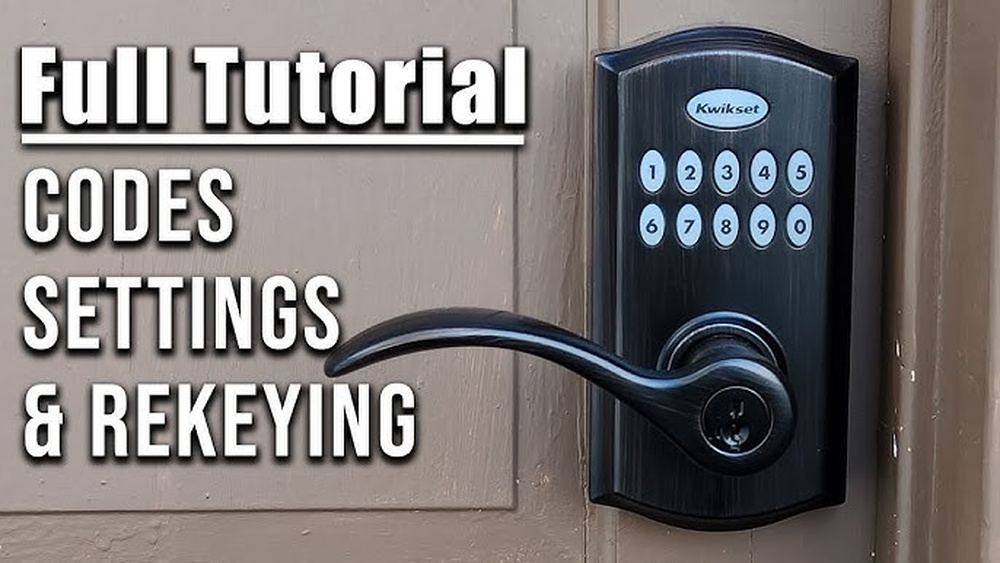
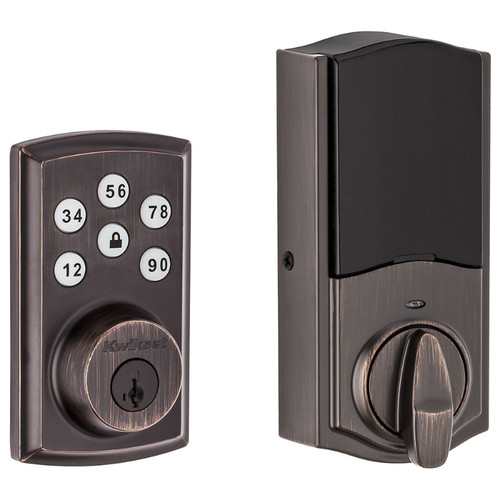
Keypad locks use a number pad for entry. Users enter a code to unlock the door. Resetting the code usually involves pressing a reset button. Some models need a master code for changes. Keypad locks are common and easy to use.
Biometric Locks
Biometric locks use fingerprints or facial recognition. They provide high security with unique personal data. Resetting codes here means updating stored fingerprints or faces. This process varies by brand but often requires admin access. Biometric locks offer convenience and strong protection.
Bluetooth Enabled Locks
Bluetooth locks connect to smartphones or tablets. Users unlock doors through an app. Resetting codes is done inside the app settings. These locks allow remote access and easy code management. They suit tech-savvy users seeking flexible control.
Credit: doorlocksdirect.com
When To Reset Door Codes
Knowing when to reset door codes on your smart lock is key to keeping your home safe. Changing codes at the right times helps protect your property and gives you peace of mind. This guide covers important moments to update your smart lock codes.
After Moving In
Reset door codes right after moving into a new home. Previous owners or workers may still have access codes. Changing codes removes any chance they can enter without permission. This step is crucial for your safety and privacy.
Lost Or Stolen Codes
Reset codes immediately if you lose the code or suspect it is stolen. Someone with your code can unlock your door anytime. Changing the code stops unauthorized access fast. Don’t wait to secure your home.
Regular Security Updates
Change your door codes regularly, even without a problem. Regular updates reduce the risk of old codes being used. Set a schedule to update codes every few months. This simple habit keeps your smart lock secure over time.
Preparing To Reset Codes
Preparing to reset door codes on your smart lock is an important first step. It helps ensure a smooth and quick process. Taking a few moments to get ready saves frustration later. Follow these simple steps to prepare properly.
Gather Required Tools
Start by collecting all tools you might need. Most smart locks only require a small screwdriver. Some models may need a paperclip or a reset pin. Having these tools ready avoids interruptions during the reset.
Locate User Manual
Find the user manual for your smart lock. The manual contains specific instructions for your model. It guides you through the exact reset steps. Keep it close by for easy reference throughout the process.
Check Battery Levels
Check the battery power of your smart lock. Low batteries can cause reset failures or errors. Replace batteries if they are weak or near empty. Strong battery power ensures the reset works without problems.

Credit: www.youtube.com
Resetting Codes On Keypad Locks
Resetting codes on keypad locks keeps your smart lock secure. Changing codes often stops unwanted access. The process is simple and quick. Follow these steps to update your door codes safely.
Access Programming Mode
Start by entering the master code on the keypad. This code lets you change settings. Press the program button if your lock has one. Wait for a beep or light to confirm entry. Now, you are in programming mode.
Delete Old Codes
Choose the option to erase or delete codes. Enter the code number you want to remove. Confirm the deletion by pressing the designated key. The lock will signal the code removal. Old codes no longer work after this step.
Add New Codes
Select the option to add new codes. Type the new code carefully on the keypad. Confirm by pressing the enter or program key. Test the new code to ensure it works well. Repeat for additional codes if needed.
Resetting Codes Via Mobile App
Resetting door codes on your smart lock through the mobile app is quick and simple. It lets you manage access without touching the lock itself. This method saves time and keeps your home secure.
The app connects directly to the smart lock. You can change, add, or remove codes easily. Follow these steps to update your access codes smoothly.
Connect To Lock
Open the smart lock app on your phone. Make sure your phone’s Bluetooth or Wi-Fi is on. Find your lock in the app’s device list. Tap to connect. Wait for the app to pair with the lock. Connection shows when the lock status updates.
Navigate To Code Settings
After connecting, look for the settings menu. Select “Code Management” or “Access Codes.” This section lets you view current codes. You can also add or delete codes here. The layout is simple, easy to find.
Update Access Codes
To reset a code, select it from the list. Choose “Edit” or “Delete” to change or remove the code. Enter the new code carefully. Save your changes before exiting. The lock updates immediately and uses the new code. Test the new code to confirm it works.
Tips For Strong Door Codes
Strong door codes protect your smart lock from unwanted access. They stop hackers and strangers from guessing your code. Creating a strong code is simple with the right approach. Follow these tips to keep your home safe.
Use Complex Combinations
Choose numbers that mix digits without any order. Avoid using only repeated numbers or sequences. Combine different digits to make guessing hard. Longer codes offer better security than short ones.
Avoid Common Patterns
Do not use easy patterns like “1234” or “0000.” Avoid birthdates, anniversaries, or simple shapes on the keypad. These are the first codes hackers try. Pick random numbers that don’t relate to you.
Change Codes Regularly
Update your door code often to stop unauthorized use. Change the code every few months or after giving access to guests. Regular changes reduce the risk of someone keeping the old code.
Troubleshooting Common Issues
Resetting door codes on a smart lock can sometimes face small problems. These issues can stop you from changing codes or using the lock properly. This section helps you fix common problems quickly. Clear steps make troubleshooting easy.
Lock Not Responding
First, check the lock’s batteries. Weak batteries often cause no response. Replace them with fresh ones. Next, press the reset button firmly. Hold it for the time the manual says. If the lock still does not respond, try power cycling. Remove batteries, wait 30 seconds, then reinsert. This often restarts the lock’s system.
Forgot Master Code
Resetting the master code requires special steps. Find the factory reset option in the manual. Usually, it involves pressing a reset button inside the lock. This erases all saved codes. After reset, you can set a new master code. Write it down carefully to avoid forgetting again.
Connectivity Problems
Smart locks connect via Bluetooth or Wi-Fi. Check your phone’s Bluetooth or Wi-Fi is on. Move closer to the lock to improve signal. Restart your phone and the lock. This can fix small connection issues. If problems persist, update the lock’s app. Updated software often solves bugs.

Credit: us.aqara.com
Enhancing Smart Lock Security
Enhancing smart lock security protects your home and personal items. Changing door codes is just one step. There are other ways to keep your smart lock safe and strong. These methods make it harder for intruders to get in.
Enable Two-factor Authentication
Two-factor authentication adds an extra layer of protection. It asks for a second form of ID besides the code. This could be a text message or an app notification. It helps stop hackers from entering your home. Always turn on this feature if your smart lock supports it.
Regular Firmware Updates
Firmware updates fix security holes and bugs. Smart locks work better with the latest software. Check for updates often and install them quickly. Updates keep your lock safe from new threats. Do not ignore update alerts from your smart lock app.
Monitor Access Logs
Access logs show who uses the smart lock and when. Reviewing these logs helps you spot unusual activity. Look for unknown codes or times you were not home. Report any strange entries to your lock’s support team. Monitoring logs keeps you aware and secure.
Frequently Asked Questions
How Do I Reset The Door Code On My Smart Lock?
To reset your smart lock code, access the lock’s app or keypad. Enter the current code, select reset, and set a new code. Follow the manufacturer’s instructions for your specific model to ensure proper reset and security.
Can I Change The Door Code Without The Master Code?
No, most smart locks require the master code or admin access to change the door code. This protects your lock from unauthorized changes and keeps your home secure. Always keep your master code confidential.
How Often Should I Update My Smart Lock Code?
It’s recommended to update your smart lock code every 3 to 6 months. Regular updates enhance security and reduce the risk of unauthorized access. Change codes immediately if you suspect a breach.
What If I Forget My Smart Lock Code?
If you forget your smart lock code, use the reset option via the app or keypad. You may need the master code or physical key backup. Consult your lock’s manual for specific recovery steps.
Conclusion
Resetting door codes on your smart lock keeps your home secure. Follow the steps carefully for a smooth process. Double-check the new code before saving it. Change codes regularly to protect your property. Keep your smart lock manual handy for reference.
Staying cautious helps avoid unauthorized access. Now, you can manage your smart lock codes with ease. Simple steps, better safety.