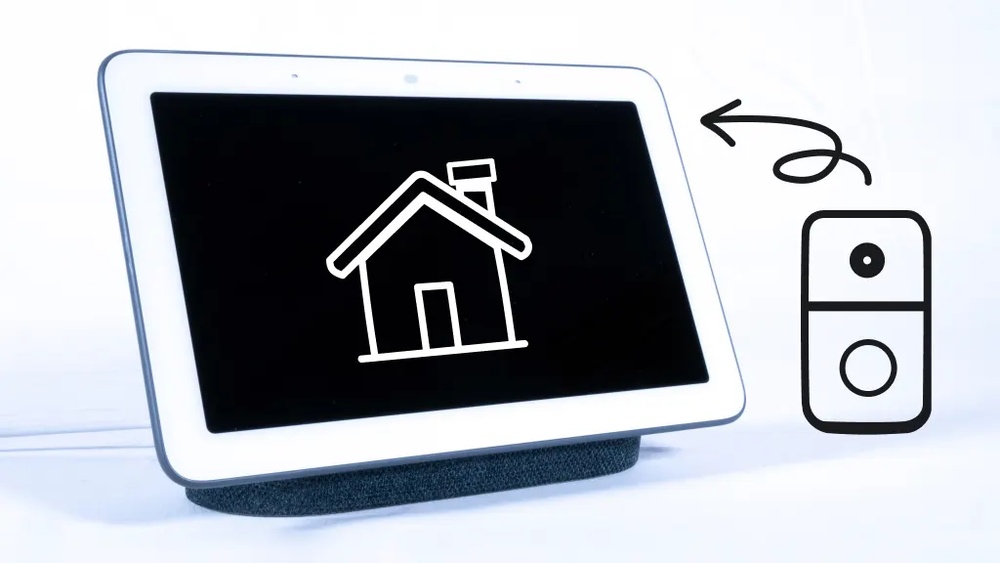

Want to make your home smarter and safer with just a few simple steps? Connecting your Ring Video Doorbell to Google Home can do exactly that.
Imagine getting instant alerts and seeing who’s at your door without lifting a finger. If you’ve ever wondered how to link these two powerful devices, you’re in the right place. This guide will walk you through the process clearly and quickly, so you can enjoy seamless voice control and smarter security right away.
Keep reading—you’re about to unlock a whole new level of convenience for your home.
Ring Video Doorbell Basics
The Ring Video Doorbell offers an easy way to see who is at your door. It helps you stay safe and connected, even if you are not home. This smart device shows live video and sends alerts to your phone.
You can speak with visitors using the built-in microphone and speaker. The doorbell also records video when it detects motion. This way, you can review what happened later.
Key Features
The Ring Video Doorbell has many useful features. It streams live video in HD quality. Motion sensors detect people and send alerts instantly. Two-way audio lets you talk to visitors from anywhere.
Night vision helps you see clearly in the dark. The device stores video clips in the cloud. You can access these clips anytime on your phone or computer. Easy installation fits most doorframes.
Compatibility With Smart Devices
The Ring Video Doorbell works with many smart home systems. It connects easily to Wi-Fi networks. It supports Amazon Alexa and Google Home. This lets you use voice commands to check your door.
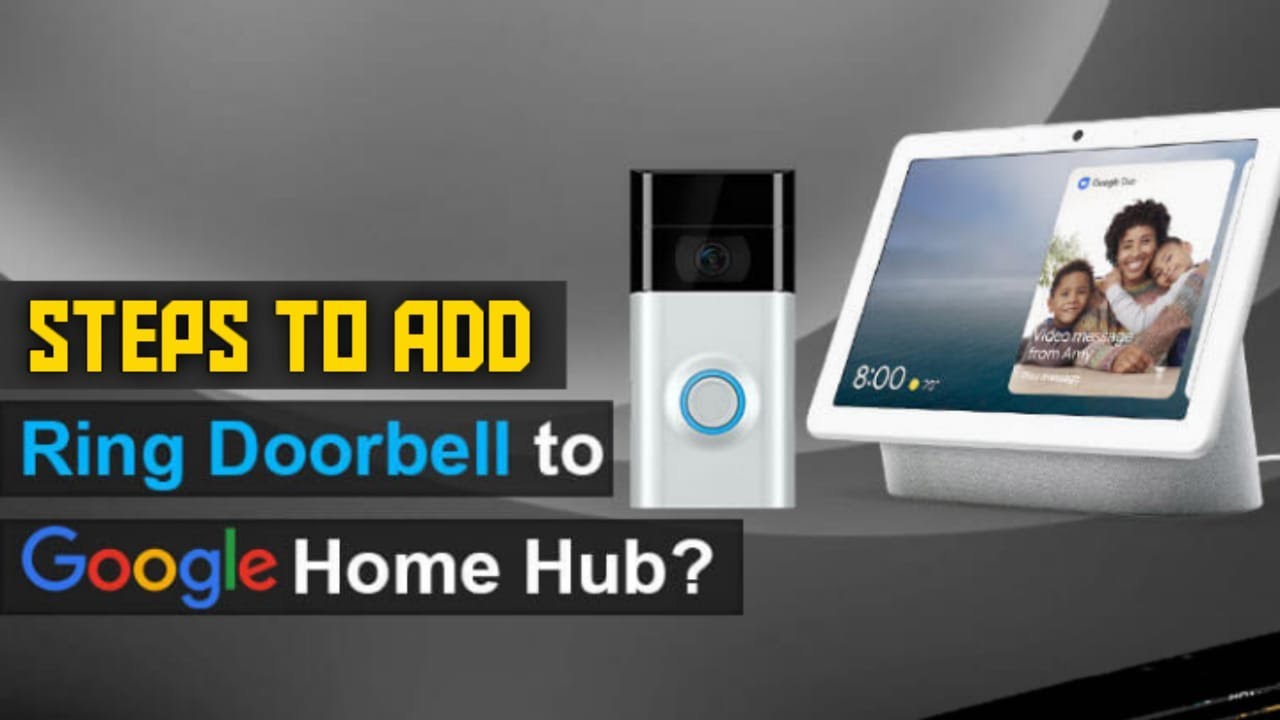
Integration with Google Home allows live video streaming on smart displays. You can ask Google Assistant to show the front door camera. This feature adds convenience and enhances home security.
Credit: arloren.com
Preparing Google Home
Preparing Google Home is the first step to connect your Ring Video Doorbell. This ensures smooth setup and better performance. Proper preparation helps avoid common connection issues. Follow these simple steps to get Google Home ready.
Setting Up Google Home App
Download the Google Home app from the App Store or Google Play. Open the app and sign in with your Google account. The app guides you through the initial setup of your Google Home device. Follow the on-screen instructions carefully. Make sure your device is powered on and near your phone. This app controls your Google Home and connects it to other devices.
Ensuring Wi-fi Connectivity
Check that your Wi-Fi network is stable and strong. Both Google Home and Ring Doorbell need the same Wi-Fi connection. Use a 2.4 GHz network if your router supports dual bands. Keep your devices close to the router during setup. Poor Wi-Fi signals cause connection problems and delays. Restart your router if the connection seems slow or unstable.
Linking Ring To Google Home
Linking your Ring Video Doorbell to Google Home lets you control your device with voice commands. It helps you see who is at your door using Google Nest speakers or displays. The setup is simple and takes only a few minutes.
Follow these clear steps to connect Ring to Google Home and start using smart voice controls.
Enabling Ring Skill In Google Home
Open the Google Home app on your phone or tablet. Tap on the “+” icon to add a new device. Choose “Set up device” and then select “Works with Google.” Search for “Ring” in the list of available services. Tap on Ring and enable the skill to link it with Google Home.
Logging Into Ring Account
After enabling the Ring skill, the app asks you to log in. Enter your Ring account email and password. Use the same details you use for the Ring app. This step connects your Ring devices to Google Home securely.
Authorizing Device Access
Once logged in, you must authorize Google Home to access your Ring devices. Allow all requested permissions to ensure full control. This access lets Google Home show video feeds and send alerts. After authorization, your Ring Video Doorbell appears in the Google Home app.

Credit: arloren.com
Customizing Device Settings
Customizing the settings of your Ring Video Doorbell within Google Home makes your smart home experience smoother. You control how the device behaves and interacts with other smart devices. These adjustments help you get alerts that matter and organize your devices clearly.
Renaming Devices
Give your Ring Doorbell a clear, simple name. This helps when using voice commands with Google Assistant. For example, name it “Front Door” or “Main Entrance.” To rename, open the Google Home app, tap the device, and select the settings option. Change the name and save. A clear name makes controlling devices easier and faster.
Assigning Rooms
Assign your Ring Doorbell to a specific room in the app. This groups devices logically. It helps Google Assistant know where each device is located. To assign a room, open the device settings in Google Home, choose “Add to room,” and pick the right room. This keeps your smart home organized and commands more natural.
Adjusting Notification Preferences
Set how and when you get alerts from your Ring Doorbell. Notifications can be turned on or off for specific times. You can also choose to receive alerts only for important events. To adjust, go to the Google Home app, find your device settings, and select notification preferences. This keeps you informed without too many alerts.
Using Voice Commands
Using voice commands with your Ring Video Doorbell and Google Home makes your smart home easier to use. You can speak to check your doorbell camera, get alerts, and control doorbell features. This hands-free control saves time and keeps you connected without needing your phone.
Viewing Doorbell Camera Feed
Say “Hey Google, show the front door camera” to see your Ring doorbell feed. Your Google Nest Hub or Chromecast device will display the live video. This helps you see visitors without moving from your spot. Watching the feed with voice commands is quick and simple.
Receiving Alerts
Google Home can announce when someone rings your doorbell or triggers motion detection. Say “Hey Google, notify me when the doorbell rings” to enable alerts. These voice alerts keep you informed even if you are in another room. You won’t miss any visitors or deliveries this way.
Controlling Doorbell Functions
Use voice commands to manage your Ring doorbell’s features. You can ask Google to silence notifications or turn on the doorbell’s light. Commands like “Hey Google, turn on the doorbell light” make it easy to control settings. Voice control adds convenience to your daily routine.
Credit: www.vicentetorns.com
Troubleshooting Tips
Troubleshooting your Ring Video Doorbell connection to Google Home can solve many common problems. Issues with connection, audio, or video can interrupt your smart home experience. This section offers simple tips to fix these problems fast. Follow these steps to get your devices working well together.
Connection Issues
Check your Wi-Fi network first. Both devices need a strong, stable connection. Restart your router to refresh the network. Make sure your Ring Doorbell and Google Home are on the same Wi-Fi band. Sometimes 2.4 GHz works better than 5 GHz. Verify your Ring app and Google Home app have the latest updates. Outdated apps may cause syncing problems.
Audio And Video Problems
Test the doorbell’s audio and video separately. Make sure the microphone and speaker are not blocked. Adjust the volume settings on Google Home. Clear any dirt or obstruction on the doorbell camera lens. Poor lighting can affect video quality. Try viewing the feed in different light conditions. Check if the devices have permission to access audio and video services.
Resetting Devices
Resetting can fix many stubborn issues. Press and hold the reset button on your Ring Doorbell for 15 seconds. For Google Home, unplug it for 10 seconds then plug it back. After resetting, reconnect your devices through their apps. This step can clear bugs and refresh the connection. Remember to set up your devices again after reset.
Frequently Asked Questions
How Do I Link Ring Video Doorbell To Google Home?
Open the Google Home app, tap “Add,” select “Set up device,” choose “Works with Google,” then find and link your Ring account.
Can Google Home Show Ring Doorbell Video Feed?
Yes, Google Nest Hub and other smart displays can show live Ring Doorbell video when linked properly.
What Voice Commands Work With Ring Doorbell On Google Home?
You can say “Hey Google, show front door” to view live Ring video on compatible displays.
Is Ring Video Doorbell Compatible With All Google Home Devices?
Most Google Home devices support Ring integration, but video streaming requires a smart display like Nest Hub.
Conclusion
Connecting your Ring Video Doorbell to Google Home makes home security easier. You can see visitors and get alerts using voice commands. This simple setup helps you stay connected and safe. Just follow the steps carefully to avoid any issues.
Enjoy hands-free control and quick responses at your door. Smart homes are about convenience and peace of mind. Now, your Ring and Google Home work together smoothly. Try it today and notice the difference.