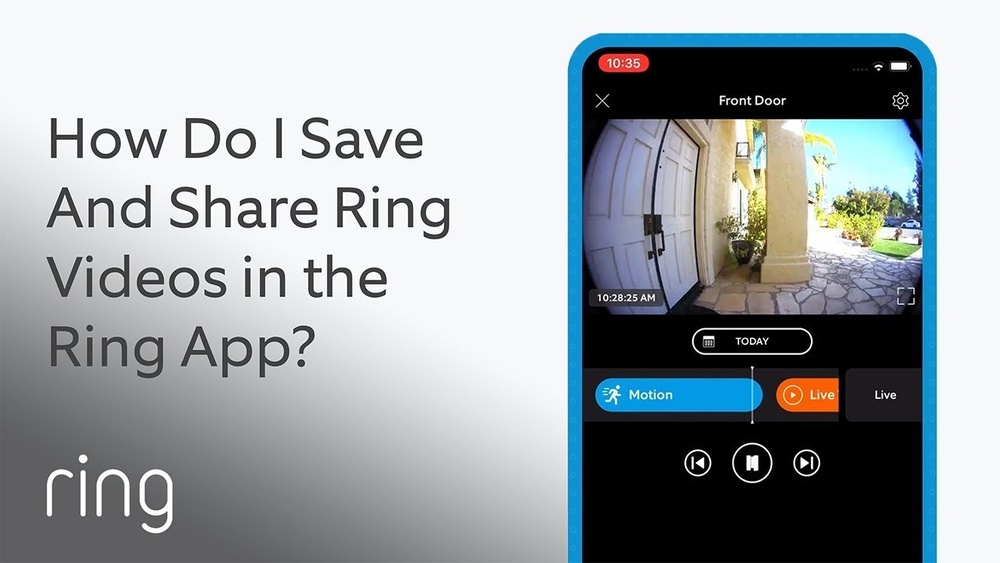

Have you ever wanted to save a clip from your Ring Video Doorbell but didn’t know how? Whether it’s a special visitor, a delivery, or something unusual caught on camera, having that video saved can be really useful.
In this guide, you’ll learn simple, step-by-step ways to download videos directly from your Ring Doorbell. By the end, you’ll have full control over your footage, making it easy to keep memories or share important moments. Ready to get started?
Let’s dive in and make sure you never miss a moment again.
Preparing Your Ring Video Doorbell
Preparing your Ring Video Doorbell is the first step before downloading videos. Proper setup ensures smooth video access and saves time. Follow these simple steps to get your device ready.
Checking Device Compatibility
Confirm your Ring Video Doorbell model supports video downloads. Older models may have limited features. Visit the official Ring website or check your device manual. Compatibility is key for successful video saving.
Updating The Ring App
Keep your Ring app updated to the latest version. New updates fix bugs and improve performance. Open your app store and check for updates. An updated app connects better with your doorbell.
Ensuring Stable Wi-fi Connection
Your Ring Video Doorbell needs a strong Wi-Fi signal. Weak connections cause download failures or delays. Place your router near the doorbell or use a Wi-Fi extender. Test the connection before downloading videos.
Accessing Your Recorded Videos
Accessing your recorded videos on the Ring Video Doorbell is simple. These videos help you see what happened at your door anytime. You can watch past events easily through the Ring app on your phone.
This section shows how to open the app, find your event history, and pick the video you want to save or review. Follow these steps to get your videos fast and hassle-free.
Opening The Ring App
Start by unlocking your phone. Find the Ring app icon. Tap it once to open the app. Wait a few seconds for it to load. You need to be logged in with your Ring account. If not, enter your email and password. The app will then show your Ring devices.
Navigating To Event History
Look at the bottom of the app screen. Tap the “History” tab to see all recorded events. This section lists videos by date and time. Scroll through the list to browse your recordings. Each entry shows a small preview and event details. This makes it easy to spot the video you need.
Selecting The Desired Video
Tap the video you want to watch. The video will start playing automatically. Use the play, pause, or rewind buttons to control playback. If you want to save or download the video, look for the download icon. Tap it to save the video to your device. Now you have your video ready to view anytime offline.
Downloading Videos To Your Device
Downloading videos from your Ring Video Doorbell lets you keep important moments safe. It also helps you share footage or review events later. Saving videos directly to your device is simple and fast.
This guide shows easy steps for mobile and desktop users. It also covers common problems and how to fix them.
Using The Download Option On Mobile
Open the Ring app on your phone. Find the video you want to save. Tap the video to open it.
Look for the download icon, usually a downward arrow. Tap it to start saving the video. The video saves to your phone’s gallery or files.
Check your phone’s storage if the download is slow or fails. Make sure your app is updated for best results.
Saving Videos On Desktop
Go to the Ring website and log in to your account. Click on “History” to see your videos. Select the video you want.
Click the download button below the video player. Choose the folder on your computer to save the file. Wait for the download to complete.
Use a stable internet connection to avoid interruptions. Keep your browser updated for smooth downloads.
Troubleshooting Download Issues
Check your internet connection first. Poor connection can stop downloads. Restart your device to clear temporary errors.
Make sure you have enough storage space on your device. Update the Ring app or browser to the latest version. Clear cache and cookies if downloads fail repeatedly.
Contact Ring support if problems continue. They can help with specific issues and guide you further.

Credit: www.ebay.com
Managing And Sharing Downloaded Videos
Downloaded videos from your Ring Video Doorbell hold important moments. Managing and sharing these clips properly helps you keep track and protect your data. Clear organization makes finding videos easy. Secure sharing keeps your privacy safe. Backing up clips prevents accidental loss. These steps improve how you use your recorded videos daily.
Organizing Videos On Your Device
Create folders based on date or event. Name files clearly for quick access. Use simple labels like “Front Door April” or “Package Delivery.” Sort videos by month or type. Keep your video library neat. This saves time and reduces stress when searching.
Sharing Videos Securely
Choose trusted apps to send videos. Use encrypted messaging or email services. Avoid public sharing platforms to protect privacy. Set permissions if using cloud storage links. Always check recipient details before sending. Secure sharing prevents unauthorized access to your clips.
Backing Up Important Clips
Store copies on external drives or cloud storage. Backup regularly to avoid data loss. Keep backups in different locations. Use automatic backup tools for convenience. Protect backups with passwords or encryption. This ensures your videos stay safe over time.
Tips For Optimizing Video Downloads
Optimizing video downloads from your Ring Video Doorbell helps save time and storage. It also ensures you get clear and useful footage. Simple steps can improve your download experience and keep your device running smoothly.
Choosing Video Quality Settings
Select the right video quality to balance clarity and file size. Higher quality videos look better but take more space. Lower quality saves storage but may lose details. Adjust settings based on your needs and internet speed.
Managing Storage Space
Check your device and phone storage regularly. Delete old videos you no longer need. Use cloud storage if available to save space on your phone. Keep enough free space to avoid download errors or delays.
Regularly Updating Firmware
Keep your Ring Doorbell firmware up to date. Updates improve performance and fix bugs. They may also add new features for video downloads. Check for updates in the app and install them promptly.

Credit: ocupatucalle.com

Credit: www.eufy.com
Frequently Asked Questions
How Can I Download Videos From Ring Video Doorbell?
To download videos, open the Ring app and select the desired video. Tap the download icon to save it to your device. Ensure you have an active Ring Protect subscription for video saving.
Is It Possible To Save Ring Videos Without A Subscription?
No, saving and downloading videos requires an active Ring Protect subscription. Without it, you can only view live footage, not download recordings.
Where Are Ring Doorbell Videos Stored After Download?
Downloaded Ring videos are stored in your device’s default photo or video folder. You can access them directly from your phone’s gallery or file manager.
Can I Download Ring Videos On Both Ios And Android?
Yes, the Ring app supports video downloads on both iOS and Android devices. The process is similar across platforms using the app’s download feature.
Conclusion
Downloading videos from your Ring Video Doorbell is simple and quick. Follow the steps carefully to save important clips. Keep your app updated for the best experience. Always check your storage space before downloading. This way, you won’t miss any important moments.
Regular downloads help keep your videos safe. Now, you can easily review and share your footage anytime. Stay secure and in control of your home videos.