
Do you want to share your phone or tablet screen on your TV without any hassle? Screen mirroring with SmartThings makes it simple and quick.
Imagine watching your favorite videos, browsing photos, or even playing games on a big screen, all from your device. In this guide, you’ll discover easy steps to connect and mirror your screen effortlessly. Keep reading, and you’ll be amazed at how straightforward and fun it can be to bring your content to life on a larger display.
Requirements For Screen Mirroring
Screen mirroring with SmartThings lets you share your device’s screen on a bigger display. To do this smoothly, certain requirements must be met. These ensure the process works without any interruptions or technical issues.
Check your devices and network setup first. Then, install the SmartThings app properly. Meeting these needs will help you enjoy a clear and stable screen mirror experience.
Compatible Devices
Screen mirroring with SmartThings works on specific devices. Most Samsung smart TVs support it. Many Samsung smartphones and tablets also work well. Other Android devices may be compatible but check for SmartThings support first. Non-Samsung devices often need extra steps or apps.
Network Setup
Both devices must connect to the same Wi-Fi network. A strong and stable Wi-Fi signal is essential. Avoid public or guest networks that block device communication. Use a 2.4 GHz or 5 GHz network for faster speeds. This ensures smooth and lag-free mirroring.
Smartthings App Installation
Install the SmartThings app on your smartphone or tablet. Get the app from the Google Play Store or Samsung Galaxy Store. Open the app and sign in with your Samsung account. Make sure the app is up to date for the best performance. The app controls the connection between your devices.
Credit: www.samsung.com
Preparing Your Devices
Preparing your devices is the first step to screen mirror with Smart Things. Both your TV and phone or tablet must be ready. This ensures a smooth connection and better streaming experience.
Check settings carefully. Make sure your devices support screen mirroring and are updated. This avoids common connection issues and saves time.
Enable Screen Mirroring On Tv
Turn on your TV and open the settings menu. Find the screen mirroring option, often under network or connection settings. Activate this feature to allow other devices to connect.
Some TVs show a pop-up or icon when screen mirroring is ready. Keep the TV on this screen while connecting your phone or tablet.
Connect Devices To Same Network
Both your TV and mobile device must connect to the same Wi-Fi network. This lets them find and communicate with each other easily.
Open Wi-Fi settings on each device. Select your home network and enter the password if needed. Avoid using mobile data or different networks.
Stable Wi-Fi improves streaming quality and reduces lag. Check your connection speed for the best results.
Using Smartthings For Screen Mirroring
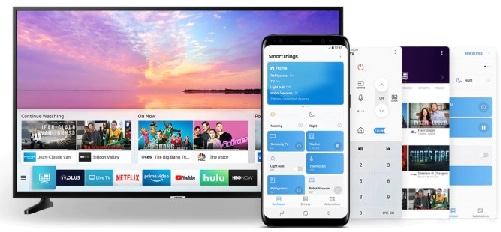
Using SmartThings for screen mirroring makes sharing content easy and fast. This feature lets you show your phone’s screen on a bigger TV screen. It works well with Samsung TVs and other SmartThings-compatible devices. The process is simple and does not need extra cables or apps. Follow the steps below to start mirroring your screen through SmartThings.
Launching The App
First, open the SmartThings app on your smartphone. The app is available for both Android and iOS devices. Make sure your phone is connected to the same Wi-Fi network as your TV. Opening the app shows a list of devices linked to your account. It is the starting point to control and connect your devices.
Selecting Your Tv
Next, find your TV in the devices list on the app. Tap on your TV’s name to connect. The app will show the TV’s status to confirm the connection. Ensure your TV is powered on and ready to receive signals. This step links your phone and TV for screen sharing.
Starting The Screen Mirror
After connecting, look for the screen mirroring option in the app. It may be labeled as “Mirror Screen” or “Smart View.” Tap this option to begin sharing your phone’s screen. Your TV will display your phone screen in a few seconds. Now, you can enjoy your photos, videos, or apps on the big screen.

Credit: r1.community.samsung.com
Troubleshooting Common Issues
Screen mirroring with Smart Things usually works smoothly. Sometimes, issues may occur. These problems can stop your connection or cause poor quality. Troubleshooting helps fix these common issues quickly.
Try simple solutions first. Restart your devices or check your Wi-Fi. Keep your apps and software updated to avoid bugs. This section explains how to solve frequent problems.
Connection Problems
Check if both devices are on the same Wi-Fi network. Different networks block screen mirroring. Move your devices closer to the router. Weak Wi-Fi signals cause disconnections. Restart your router and devices to refresh connections. Disable VPN or firewall apps that may block connections.
Audio Or Video Lag
Slow Wi-Fi causes lag during screen mirroring. Pause other online activities to free bandwidth. Lower video quality settings in the app. Close unused apps running in the background. Update your device’s firmware to improve performance. Restart the Smart Things app to clear temporary glitches.
App Crashes
App crashes happen due to outdated software. Update the Smart Things app from the store. Clear the app cache to remove corrupted files. Restart your device to fix memory issues. Reinstall the app if problems continue. Ensure your device meets the app’s minimum requirements.
Tips For Smooth Screen Mirroring
Screen mirroring with Smart Things can be smooth and enjoyable. Some simple tips help you avoid lag and poor quality. These tips focus on your network and display settings. Small changes make a big difference.
Follow these steps to get the best experience during screen mirroring. Clear images and steady connection are possible with a few adjustments.
Optimizing Network Performance
Use a strong Wi-Fi connection for smooth screen mirroring. Place your device and TV close to the router. Avoid walls or large objects that block signals. Turn off other devices that use the same network. This frees up bandwidth and reduces lag. Restart your router if the connection feels slow. Choose a 5GHz Wi-Fi band if your router supports it. This band is faster and less crowded than 2.4GHz.
Adjusting Display Settings
Set your TV and phone to the same resolution. This prevents blurry or stretched images. Lower the resolution if the connection struggles. Adjust the screen size to fit your TV perfectly. Turn off any power-saving modes on your devices. These modes can reduce performance and cause interruptions. Test different brightness and contrast levels for clear visuals. Keep your devices updated to improve compatibility and stability.

Credit: www.youtube.com
Frequently Asked Questions
What Devices Support Screen Mirroring With Smartthings?
SmartThings supports screen mirroring on compatible Samsung TVs and select Android devices. Ensure both devices are on the same Wi-Fi network for seamless connection.
How To Start Screen Mirroring Using Smartthings App?
Open the SmartThings app, select your TV, and tap “Smart View. ” Choose your device to begin mirroring your screen instantly.
Can I Mirror An Iphone Screen Using Smartthings?
No, SmartThings primarily supports Android devices for screen mirroring. For iPhones, use AirPlay or compatible third-party apps for better results.
Why Won’t My Device Connect To Smartthings For Mirroring?
Check Wi-Fi connectivity and ensure both devices are on the same network. Restarting devices and updating the SmartThings app often resolves connection issues.
Conclusion
Screen mirroring with Smart Things makes sharing content simple. Connect your devices and enjoy your photos, videos, or apps on a bigger screen. This method saves time and avoids cables. It works well for meetings, movies, or games. Just follow the steps carefully, and you will succeed.
Keep your devices updated for smooth performance. Try it today and enjoy easy screen sharing at home or work.