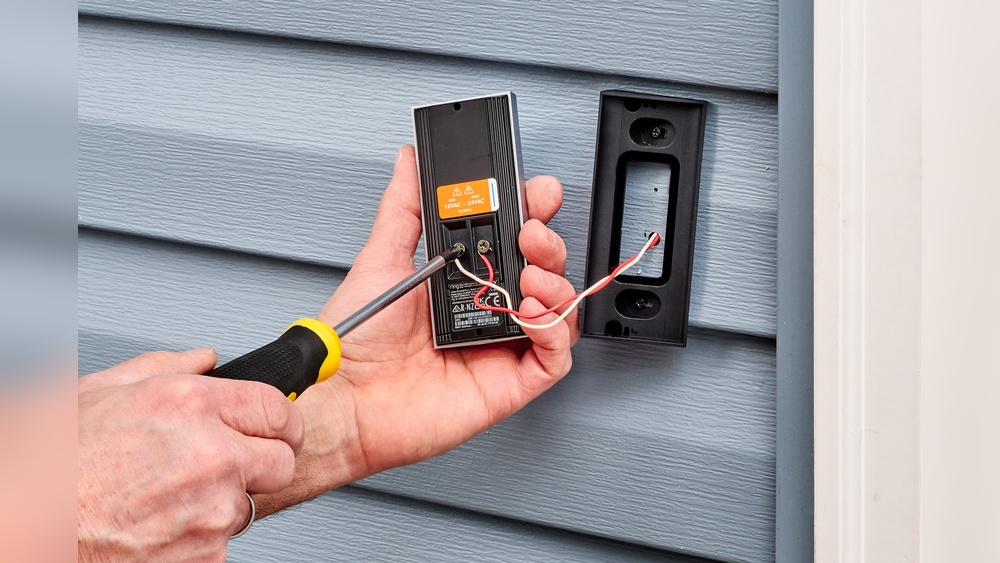

Are you ready to boost your home’s security and see who’s at your door anytime, anywhere? Installing a Ring Video Doorbell is easier than you think, and you don’t need to be a tech expert to do it.
In this guide, you’ll discover simple, step-by-step instructions to get your Ring Doorbell up and running quickly. By the end, you’ll feel confident and in control, knowing your home is safer than ever. Keep reading, and let’s make your front door smarter today!
Choose The Right Ring Doorbell
Choosing the right Ring Video Doorbell is an important first step. The right model fits your needs and home perfectly. It makes installation easier and enhances your security.
Consider your budget, features, and the door where you want to install the device. Some models offer advanced features, while others focus on basic functions. Knowing what you need helps you pick the best option.
Compare Different Models
Ring offers several doorbell models. Each has different features and prices. Some have better video quality, while others include motion sensors or two-way talk. Compare battery-powered and wired options. Find the one that suits your lifestyle.
Check Compatibility With Your Door
Not all Ring doorbells fit every door type. Check if your door frame supports the size and shape of the model you want. Measure the space around your door. Make sure the doorbell can connect to your home Wi-Fi easily.
Gather Required Tools
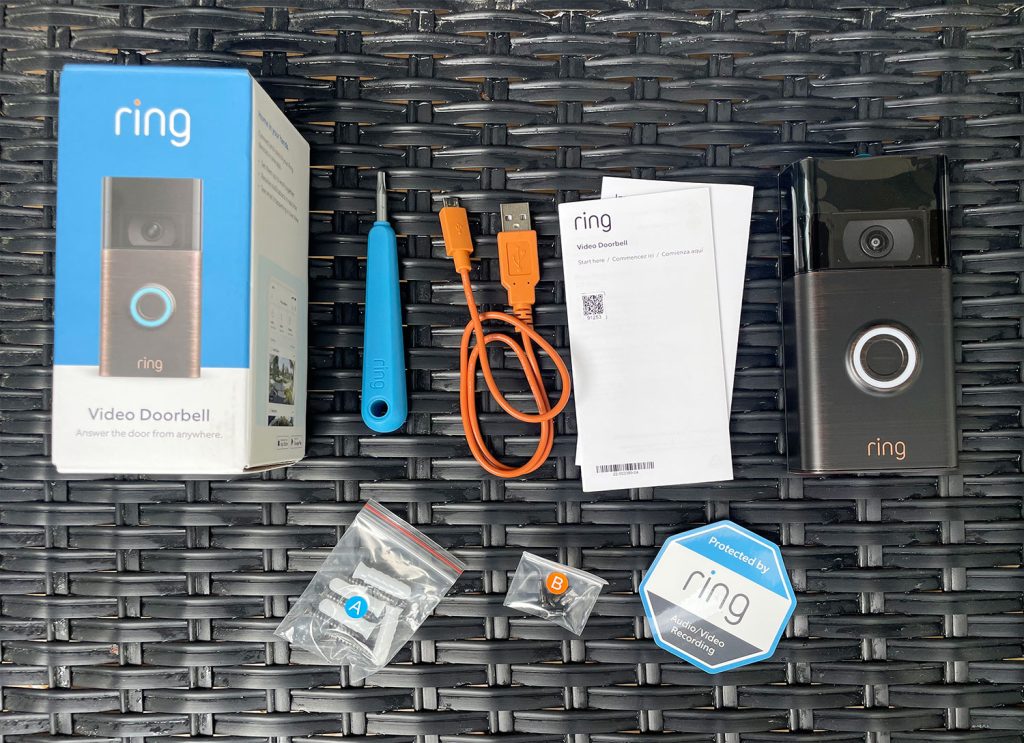
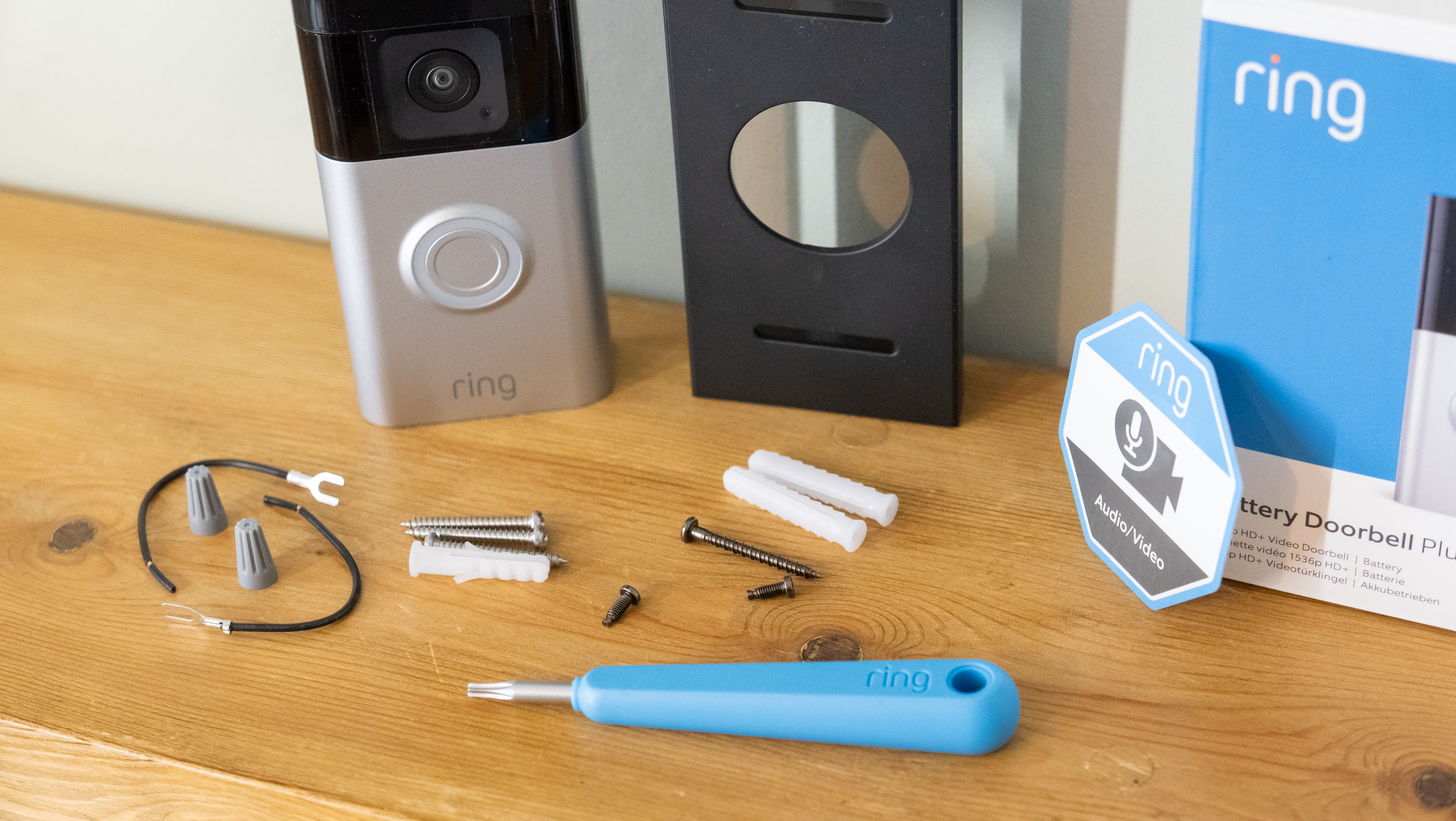
Prepare tools before starting installation. Most Ring doorbells need a screwdriver, drill, and level. Some models require additional wiring tools. Having the right tools ready saves time and avoids frustration.
Prepare For Installation
Preparing for the installation of your Ring Video Doorbell is important. It helps ensure a smooth setup and quick use. Take time to get everything ready before starting the actual installation process.
Following these steps will save time and avoid frustration. Let’s start with basic preparations that set you up for success.
Charge Your Doorbell Battery
Take the Ring Video Doorbell out of the box. Remove the battery and charge it fully. Use the USB charger included in the package. A full battery makes sure the doorbell works right after installation. Charging can take several hours. Do not skip this step.
Download The Ring App
Open the app store on your smartphone. Search for the “Ring” app. Download and install it. The app controls your doorbell and sends alerts. It also helps during setup. Make sure your phone has a good internet connection.
Create Or Log Into Your Account
Open the Ring app after installation. Create a new account if you do not have one. Use a valid email address and choose a strong password. If you already have an account, just log in. Your account links the doorbell to your phone.
Mount The Doorbell
Mounting the Ring Video Doorbell is a key step in the installation process. Proper mounting ensures your doorbell works well and stays secure. Follow these steps carefully for a smooth setup.
Select The Mounting Location
Choose a spot near your front door at eye level. The doorbell should face the area where visitors stand. Avoid direct sunlight or places exposed to heavy rain. Make sure the Wi-Fi signal is strong in this spot.
Mark Drill Points
Hold the mounting bracket against the wall. Use a pencil to mark the holes through the bracket. Check that the marks are level and evenly spaced. This helps the doorbell sit straight after mounting.
Drill Holes And Insert Anchors
Use a drill to create holes at the marked points. The hole size must fit the wall anchors. Tap the anchors gently into the holes. Anchors keep the screws tight and prevent damage to the wall.
Attach The Mounting Bracket
Line up the bracket with the drilled holes. Insert screws through the bracket into the anchors. Tighten screws firmly but avoid over-tightening. The bracket must hold steady to support the doorbell.
Connect To Wi-fi
Connecting your Ring Video Doorbell to Wi-Fi is a key step in setting it up. Without Wi-Fi, the doorbell cannot send alerts or stream video. This connection allows you to view the live feed and receive notifications on your phone. Follow these simple steps to ensure a smooth Wi-Fi connection.
Power On The Doorbell
Start by powering on your Ring Video Doorbell. Press and hold the setup button until the light ring starts spinning. This means the device is ready to connect. Make sure the doorbell has enough battery or is properly wired to power.
Follow App Setup Instructions
Open the Ring app on your smartphone. The app guides you through the Wi-Fi connection process step-by-step. Select your home Wi-Fi network from the list. Enter your Wi-Fi password carefully to avoid errors. The doorbell will then connect to your network.
Troubleshoot Connection Issues
If the doorbell fails to connect, check your Wi-Fi signal strength. Move the router closer if the signal is weak. Restart your router and try again. Ensure your Wi-Fi network uses a 2.4 GHz band, as many Ring devices do not support 5 GHz. Reset the doorbell and repeat the setup if needed.
Finalize Installation
Finalizing the installation of your Ring Video Doorbell is the last step before you start using it. This part ensures the device stays fixed and works correctly. Follow these simple steps to complete the setup smoothly.
Attach The Doorbell To The Bracket
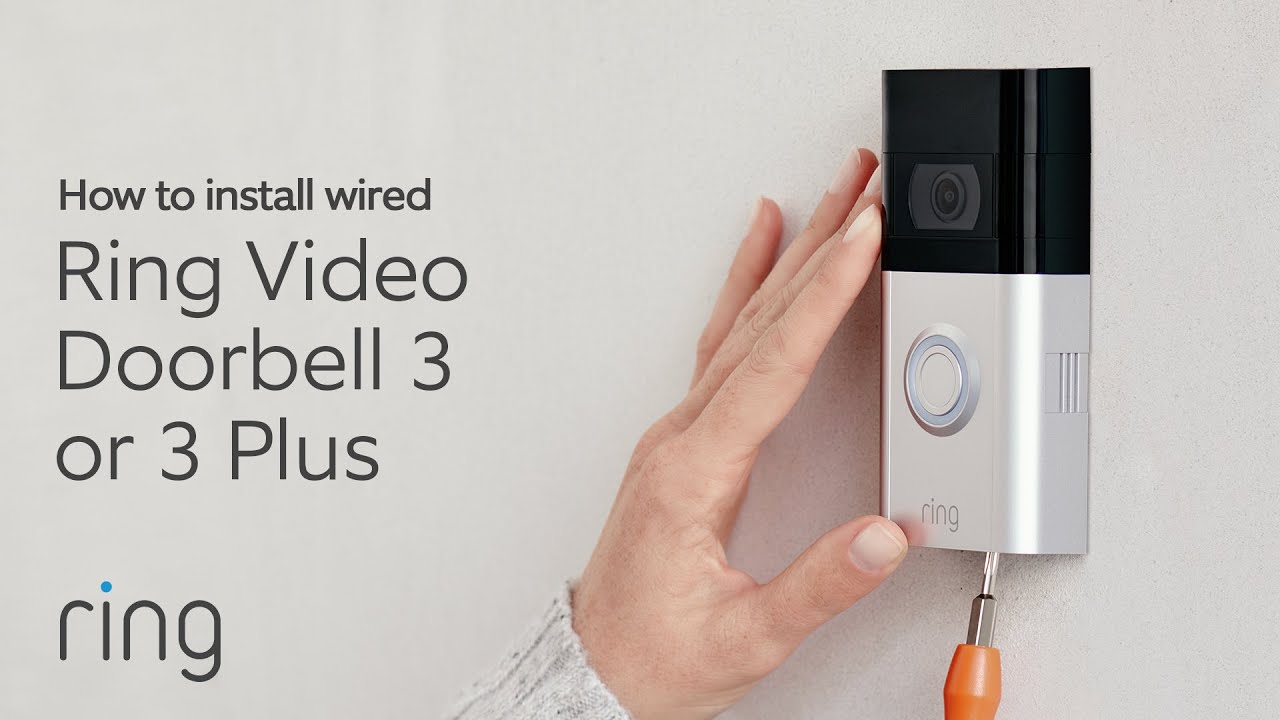
Hold the doorbell near the mounting bracket. Align the device with the bracket hooks. Slide the doorbell down until it clicks into place. This click means the doorbell is properly attached.
Secure The Doorbell With Screws
Use the screws provided in the package. Insert each screw into the holes on the bracket. Tighten screws with a screwdriver until the doorbell feels firm. Avoid over-tightening to prevent damage.
Test Video And Audio Features
Open the Ring app on your phone or tablet. Check the live video feed to see if the camera works. Speak through the app to test the two-way audio. Make sure the sound is clear both ways.
Credit: www.tondicaffe.com
Optimize Settings
Optimizing your Ring Video Doorbell settings is key for the best experience. It helps you get alerts that matter. You can avoid false alarms and protect your privacy. This section covers how to adjust motion sensitivity, set up notifications, and enable privacy zones.
Adjust Motion Sensitivity
Motion sensitivity controls how easily your doorbell detects movement. Set it too high, and you get many false alerts. Set it too low, and you might miss visitors. Find a balance by testing different levels. Start medium and adjust based on your needs. This saves battery and reduces unnecessary alerts.
Set Up Notifications
Notifications tell you when someone is at your door. Choose which alerts you want on your phone. You can get alerts for motion, rings, or both. Turn on notifications only for important events to avoid distractions. Customize sound and vibration settings for convenience. This keeps you connected without overload.
Enable Privacy Zones
Privacy zones block parts of the camera’s view. Use them to protect neighbors or private areas. Draw zones on the app to exclude those spaces from recording. This stops unwanted video and respects privacy laws. Set privacy zones carefully to keep your home safe and private.
Maintain Your Doorbell
Maintaining your Ring Video Doorbell keeps it working well for years. Simple care steps help avoid common problems. These steps ensure clear video and reliable alerts.
Clean The Camera Lens
Wipe the camera lens with a soft cloth often. Dirt and dust can blur the video. Use a damp cloth if needed. Avoid harsh cleaners that can damage the lens.
Update Firmware Regularly
Check for firmware updates in the Ring app. Updates fix bugs and improve features. Install updates as soon as they are available. This keeps your doorbell secure and efficient.
Replace Battery When Needed
Monitor battery level in the Ring app. Replace the battery if alerts slow or stop. Use only the recommended battery type. Rechargeable batteries work well for long-term use.
Credit: meditaenvalladolid.org
Credit: www.youtube.com
Frequently Asked Questions
How Do I Set Up My Ring Video Doorbell?
First, download the Ring app on your smartphone. Create an account, then follow the in-app instructions to connect the doorbell. Ensure your Wi-Fi is stable. Mount the device using the provided tools and secure it properly. Test the connection before finalizing installation.
What Tools Are Needed For Ring Video Doorbell Installation?
You need a drill, screwdriver, and level. The Ring kit includes mounting brackets and screws. A ladder might be necessary for high placements. Ensure you have your smartphone ready for app setup. No advanced tools are required.
Can I Install Ring Video Doorbell Without Wiring?
Yes, Ring offers battery-powered models. Simply charge the battery before installation. Follow the app instructions for setup. Mount the doorbell in your desired location. No electrical wiring is needed, making installation easier and quicker.
How Do I Connect Ring Video Doorbell To Wi-fi?
Open the Ring app, select your device, and choose Wi-Fi setup. Enter your network name and password. Ensure your router is within range. The app will confirm a successful connection. A strong Wi-Fi signal is essential for optimal performance.
Conclusion
Installing a Ring Video Doorbell is simple and quick. Follow the steps carefully for best results. Make sure your Wi-Fi works well to connect the device. Test the doorbell after setup to ensure it functions properly. Enjoy the added security and convenience it brings to your home.
Stay safe and always know who is at your door. This small device can make a big difference. Keep your home protected with easy installation.


