
You want your Ring Doorbell to capture every detail clearly, but sometimes the video quality just doesn’t meet your expectations. Whether it’s blurry images, lagging footage, or poor lighting, these issues can make you miss important moments.
Imagine being able to see every visitor’s face sharply and hear every sound without a glitch. In this guide, you’ll discover simple and effective tips to boost your Ring Doorbell’s video quality. By the end, you’ll have the know-how to get the clearest, most reliable video possible—giving you peace of mind and full control over your home security.
Keep reading to unlock the secrets to perfect video on your Ring Doorbell.
Optimize Ring Doorbell Placement
Optimizing the placement of your Ring Doorbell greatly improves video quality. The right position helps capture clear images and better motion detection. Small changes in height, angle, and surroundings make a big difference. Follow these tips to get the best view from your doorbell camera.
Choose Ideal Height And Angle
Place your Ring Doorbell at about 48 inches from the ground. This height captures faces clearly without distortion. Angle the camera slightly downward to cover the porch and front door. Avoid pointing it too far up or down. A straight, clear view helps catch more details.
Avoid Obstructions And Glare
Keep the camera lens free from plants, walls, or decorations. Obstructions block the view and reduce video clarity. Watch out for shiny surfaces that cause glare. Glare can blur the image and confuse motion sensors. Position your doorbell where sunlight or headlights won’t hit directly.
Consider Lighting Conditions
Good lighting is key for sharp video quality. Install your Ring Doorbell where natural light brightens the area. Avoid dark corners or harsh shadows that hide details. If needed, add porch lights to improve night visibility. Balanced lighting helps your camera capture clear footage all day.

Credit: www.techhive.com
Adjust Video Settings
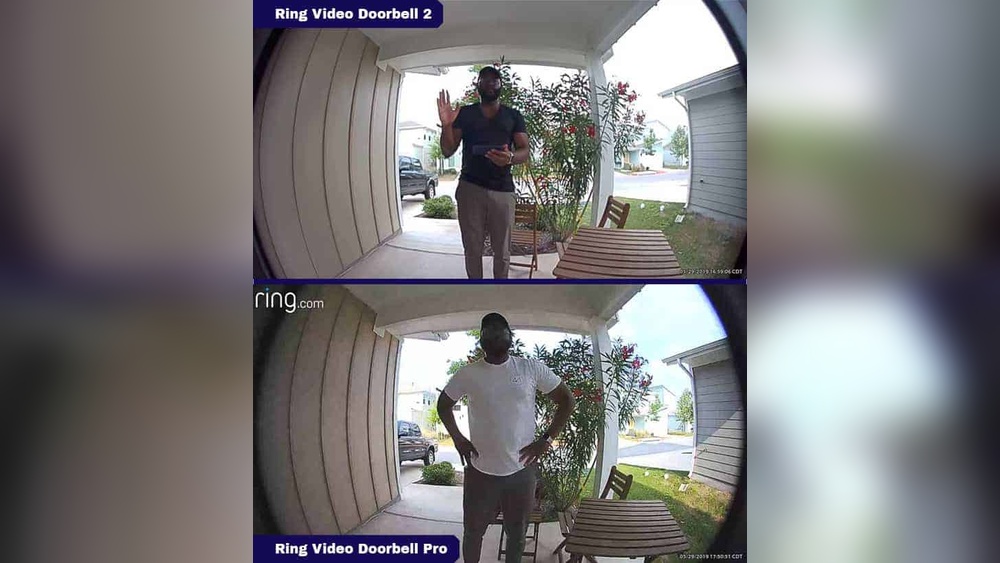
Adjusting the video settings on your Ring Doorbell can greatly improve the quality of the footage. Small tweaks help you see clearer images and capture important details. These settings allow you to customize the video to fit your needs and environment. Here are some key adjustments to enhance your video quality.
Select Highest Resolution Available
Choose the highest video resolution your Ring Doorbell supports. Higher resolution means sharper and clearer images. This helps you identify faces and objects more easily. Remember, higher resolution may use more data and bandwidth. Balance quality and internet speed for the best results.
Configure Motion Sensitivity
Adjust the motion sensitivity to reduce false alerts and focus on real events. Too high sensitivity causes many unnecessary notifications. Too low sensitivity might miss important movements. Find a setting that detects people and not small animals or passing cars. This keeps your alerts meaningful and your video recordings relevant.
Enable Hdr For Better Contrast
Turn on HDR (High Dynamic Range) to improve video contrast and color balance. HDR helps capture details in both bright and dark areas. This is useful in tricky lighting conditions like sunsets or shadows. Enabling HDR makes your footage look more natural and easier to see. It enhances the overall video quality significantly.
Enhance Wi-fi Performance
Enhancing your Wi-Fi performance is key to getting the best video quality on your Ring Doorbell. A strong and stable Wi-Fi connection helps the camera stream clear and smooth videos. Poor Wi-Fi can cause lag, pixelation, or even loss of video feed. Focus on improving your Wi-Fi setup for better results.
Position Router For Strong Signal
Place your router near the Ring Doorbell’s location. Keep it away from walls or metal objects that block signals. Higher placement, like on a shelf, helps Wi-Fi reach farther. Avoid placing the router on the floor or inside cabinets.
Use Wi-fi Extenders Or Mesh Systems
Wi-Fi extenders boost your signal to hard-to-reach areas. Mesh systems use multiple devices to cover large spaces evenly. Both options help maintain a strong connection for your Ring Doorbell. Choose one based on your home size and layout.
Check Network Speed And Stability
Run speed tests near your Ring Doorbell. Look for download speeds above 5 Mbps for smooth video. Test your connection at different times to check stability. Reset your router if speeds drop or connection fails often.
Maintain Your Device
Maintaining your Ring Doorbell is key to getting the best video quality. Regular care keeps the device working well and the video clear. Small steps can make a big difference in how your camera performs every day.
Clean The Camera Lens Regularly
Dust, dirt, and water spots can blur your video. Use a soft cloth to gently wipe the lens. Clean it often, especially after bad weather. Avoid harsh cleaners that might damage the lens coating.
Update Firmware And App
Ring releases updates to fix bugs and improve video quality. Check for firmware updates in the Ring app. Keep the app updated on your phone too. Updates help your device run smoothly and securely.
Restart Device To Fix Glitches
Sometimes the video freezes or looks fuzzy. Restarting the Ring Doorbell can fix this. Unplug it or use the app to reboot the device. Restarting clears small errors and refreshes the system.
Utilize Advanced Features
Utilizing the advanced features of your Ring Doorbell enhances video quality and improves security. These features help you see clearer images and get timely alerts. They make your device work smarter, not harder. Focus on these settings to maximize your experience.
Activate Night Vision
Night vision lets your Ring Doorbell record clear videos in low light. It uses infrared lights to brighten the scene without glare. Turn on night vision in the app to see visitors after dark. This feature captures details that regular cameras miss at night.
Set Up Motion Zones
Motion zones allow you to pick specific areas to monitor. This reduces false alerts from cars or animals. Customize zones around your door or driveway for better focus. Setting zones helps your camera detect movement where it matters most.
Use Alexa Integration For Alerts
Connecting Ring with Alexa lets you get instant alerts on your devices. Alexa can announce when someone is at your door. This hands-free feature keeps you informed without checking your phone. It adds convenience and quick response to your security.

Credit: www.reddit.com

Credit: kdfoundation.org
Frequently Asked Questions
How Can I Improve Ring Doorbell Video Quality?
Ensure a strong Wi-Fi connection and update the Ring app regularly. Adjust video settings to the highest resolution available for clearer footage.
What Affects Ring Doorbell Video Clarity?
Poor Wi-Fi, low light, and dirty lenses reduce video clarity. Keep the lens clean and position the doorbell where lighting is optimal.
Does Ring Doorbell Support Hd Video Recording?
Yes, most Ring Doorbells support HD video. Enable HD video in the app settings for the best quality recordings.
How To Reduce Video Lag On Ring Doorbell?
Improve Wi-Fi speed and reduce network congestion. Restart your router and place the doorbell closer to the Wi-Fi source.
Conclusion
Getting clear video on your Ring Doorbell needs simple steps. Check your Wi-Fi signal often. Clean the camera lens for a sharp view. Adjust the video settings to fit your needs. Keep your device’s software up to date. These small actions boost video quality a lot.
Enjoy safer and clearer monitoring every day. Quality video helps you see visitors well. Stay alert and keep your home secure easily.