
Are you tired of seeing only black and white video from your Ring Doorbell? You’re not alone.
Many users want to enjoy clear, full-color footage to better recognize faces and details around their home. Getting your Ring Doorbell to show color video can seem tricky, but it’s easier than you think. You’ll discover simple steps and tips to unlock vibrant color video on your device.
Keep reading—you’ll soon have sharper, more colorful views right at your doorstep.

Credit: www.aboutamazon.com
Common Reasons For Black And White Video
Seeing black and white video from your Ring doorbell can be confusing. Many expect color video all the time. Several common reasons cause this issue. Understanding these helps fix the problem quickly. Let’s explore why your Ring doorbell might show black and white video.
Night Vision Mode Activation
Ring doorbells use night vision to capture clear video in the dark. This mode switches the video to black and white. Infrared lights help the camera see better at night. This change improves image clarity but removes color. The doorbell turns off night vision when more light is available.
Low Light Conditions
Low light can cause your video to lose color. Cameras need enough light to capture colors well. In dim areas, the camera shifts to black and white to improve visibility. Adding more light near your doorbell can help. Bright lights help maintain color video during evening hours.
Camera Settings Issues
Incorrect settings can cause black and white video. Check your Ring app for camera preferences. Sometimes settings reset after updates or power loss. Make sure night vision is set to automatic or off. Adjusting settings can restore color video easily.
Firmware Or Software Glitches
Software bugs can affect video quality. Firmware updates may fix these glitches. Restart your Ring device to refresh its system. Keep your app and device updated to avoid issues. Regular updates improve performance and video color accuracy.
Credit: www.amazon.com
Adjusting Camera Settings
Adjusting the camera settings can help your Ring Doorbell show color video. Sometimes, the default settings may cause the video to appear in black and white. Small changes in the settings can make a big difference in video quality and color display.
Follow these steps to ensure your camera shows clear, colorful video footage.
Disabling Night Vision
Night vision often switches the camera to black and white mode. This helps the camera see better in low light. To see color video, turn off night vision in the app. Open your Ring app, find the device settings, and look for the night vision option. Toggle it off to allow color recording.
Checking Video Preferences
Video preferences control how your Ring Doorbell records and displays video. Check your app to see if the color option is enabled. Look for video quality settings and make sure it is set to the highest quality. Higher quality settings help keep the colors bright and clear.
Resetting To Default Settings
Resetting your Ring Doorbell to default settings can fix many video issues. This step clears any wrong settings that may hide colors. Find the reset option in the device settings in the app. After resetting, set up your Ring Doorbell again and check if the video shows in color.
Improving Lighting Conditions
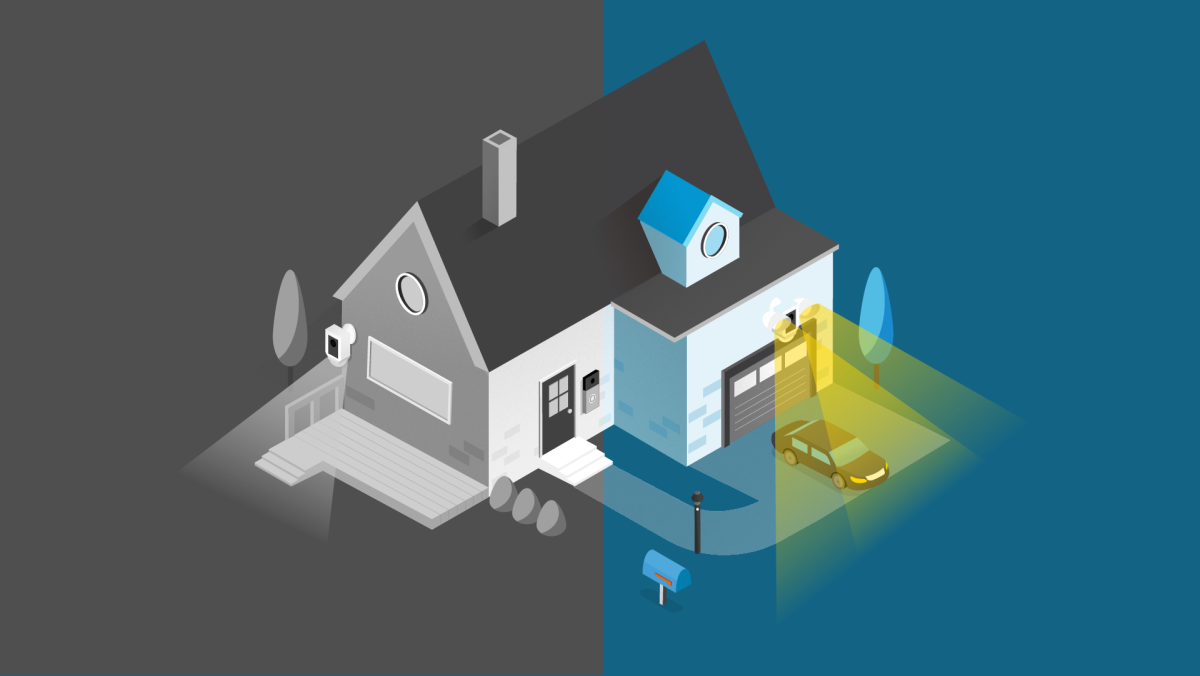
Good lighting helps your Ring Doorbell show clear color video. Poor light makes the camera switch to black and white mode. Improving lighting around your doorbell can keep the video colorful and sharp. Bright, even light helps the camera capture true colors and details. Here are some ways to improve lighting conditions.
Adding External Lights
Install lights near your doorbell to brighten the area. Choose soft white or daylight bulbs for natural color. Wall-mounted lights work well to light the porch or entryway. Make sure the lights do not shine directly into the camera lens. Proper lighting helps your Ring Doorbell capture vibrant color video at night.
Positioning The Camera For Better Light
Place your Ring Doorbell where it can catch natural light. Avoid spots blocked by walls, trees, or other objects. Aim the camera so it faces the brightest area near your door. Sunlight or porch lights in front of the camera improve color quality. A well-positioned camera needs less artificial light to show color video.
Using Motion-activated Lights
Motion lights brighten the area only when someone approaches. This saves energy and keeps your porch well-lit at night. Choose lights with a soft glow to avoid glare in the video. Motion-activated lights help your Ring Doorbell switch to color mode quickly. They also make visitors more visible and improve security around your door.
Credit: ring.com
Updating Firmware And App
Updating your Ring Doorbell’s firmware and app is important for clear color video. Updates fix bugs and add new features. Keeping your device and app current helps improve video quality and performance.
Checking For Firmware Updates
Open the Ring app on your phone. Tap the menu and select “Devices.” Choose your Ring Doorbell from the list. Look for a firmware update notification. If available, follow the steps to install it. Firmware updates run in the background and improve video quality.
Updating The Ring App
Go to your phone’s app store. Search for the Ring app. If an update is available, tap “Update.” The latest app version supports new features and better video display. Using the newest app helps your Ring Doorbell show color video correctly.
Restarting The Device After Updates
After updating, restart your Ring Doorbell. Press and hold the setup button for 15 seconds. Release the button and wait for the device to reboot. Restarting applies the updates fully. This step often solves video color issues quickly.
Troubleshooting Network Issues
Network issues often cause your Ring Doorbell to show black and white video instead of color. Fixing these problems can improve video quality and help you see clearer images. Checking and adjusting your network setup is a good first step.
Ensuring Strong Wi-fi Signal
A weak Wi-Fi signal can lower video quality. Place your router closer to the Ring Doorbell. Remove objects that block the signal, such as walls or metal items. Use a Wi-Fi analyzer app to check signal strength at your doorbell’s location. Aim for at least 2 bars of signal for good video quality.
Restarting Router And Ring Device
Restarting your router refreshes your internet connection. Unplug the router, wait 30 seconds, then plug it back in. Restart your Ring Doorbell by holding its button for 15 seconds. This process clears temporary issues and often fixes color video problems.
Optimizing Network Settings
Change your router settings to improve connection. Use the 2.4 GHz band instead of 5 GHz for better range. Check if your router has Quality of Service (QoS) settings and prioritize your Ring device. Disable any VPN or firewall that might block video data. Keep your router’s firmware up to date for best performance.
Performing A Factory Reset
Performing a factory reset on your Ring Doorbell can help fix color video issues. Sometimes, settings or software glitches cause the video to show in black and white. Resetting the device returns it to its original state. This step can clear out errors and restore normal function.
Factory reset is a simple process. It takes only a few minutes. After the reset, you must set up the Ring Doorbell again. Follow the instructions carefully to get color video back.
When To Reset
Reset your Ring Doorbell if the video stays in black and white. Also reset if the device does not respond or connect. Try other fixes first, like checking Wi-Fi and power. Use reset as a last step to solve persistent problems.
Steps To Reset Your Ring Doorbell
Locate the reset button on your Ring Doorbell. It is usually on the back or side. Press and hold the button for 15 seconds. Release the button and wait for the device to restart. The light will flash, showing the reset is complete.
Reconfiguring After Reset
Open the Ring app on your phone. Follow the prompts to add a new device. Connect the Ring Doorbell to your Wi-Fi network. Customize your settings, including video preferences. Test the video to confirm it shows in color.
Contacting Ring Support
Contacting Ring Support can help solve color video issues with your Ring Doorbell. Sometimes, problems need expert help. Ring’s team can guide you step-by-step. They can check settings and fix device glitches. Knowing when and how to contact them saves time and effort.
When To Reach Out
Reach out if your Ring Doorbell only shows black and white video. Also, contact support if you tried basic fixes but color video still does not work. Problems like software bugs or hardware faults need professional help. Don’t wait too long. Early help can prevent bigger issues.
What Information To Provide
Give clear details about your problem. Mention your Ring Doorbell model and app version. Explain what you tried to fix the issue. Include when the problem started. This information helps support find the right solution faster. Keep your device near during the call for quick checks.
Available Support Channels
Ring offers several ways to get support. Use their official website to chat live with an agent. Call their customer service number for direct help. Check their help center for guides and FAQs. Some issues can be solved by reading tips online. Choose the channel that suits you best.
Frequently Asked Questions
How Do I Enable Color Video On My Ring Doorbell?
Open the Ring app and go to device settings. Ensure the color video option is enabled. Update the firmware if needed. Good lighting also helps capture color footage clearly.
Why Is My Ring Doorbell Showing Black And White Video?
Black and white video usually means your Ring is in night vision mode. Low light triggers infrared sensors, causing grayscale video. Improve lighting to get color video during the day.
Can I Force My Ring Doorbell To Record Color Video?
You cannot manually force color video if lighting is low. The device switches to night vision automatically for clear footage. Ensure proper lighting for color recordings.
Does Ring Doorbell Firmware Affect Video Color Quality?
Yes, outdated firmware can cause video issues. Regularly update your Ring Doorbell firmware to maintain optimal color video performance and fix bugs.
Conclusion
Getting your Ring Doorbell to show color video improves your home security. Good lighting and camera settings matter most. Check your device’s night vision mode and adjust it if needed. Make sure your Wi-Fi connection is strong and stable. Try updating the Ring app and device software regularly.
Small changes can make a big difference. Enjoy clearer, colorful footage anytime. Stay safe and keep an eye on your home with confidence.