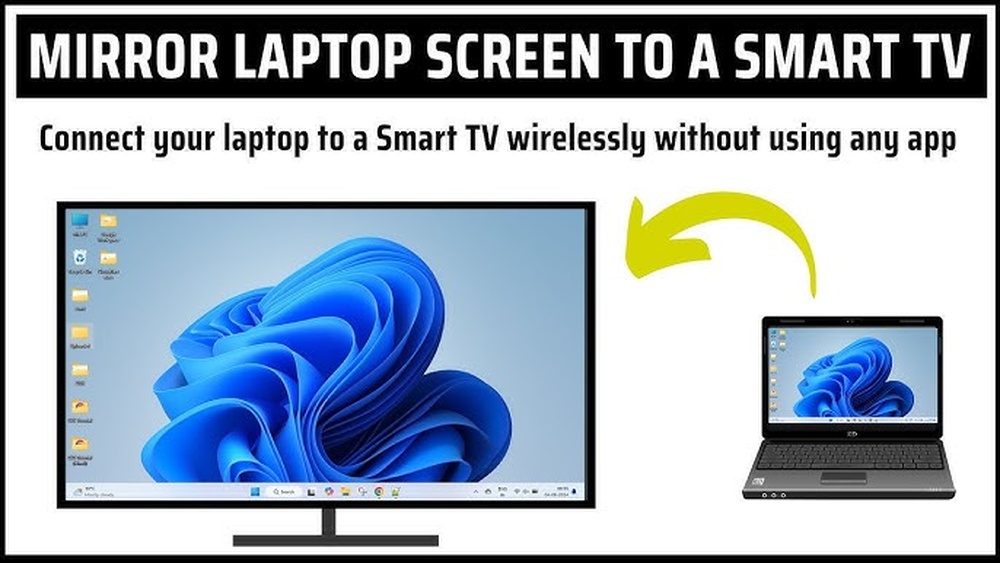

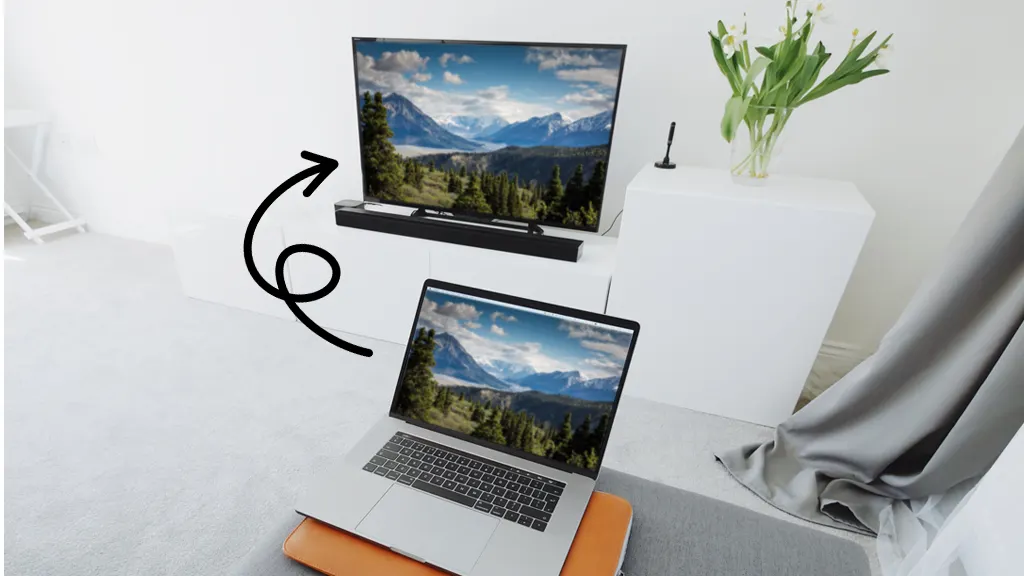
Have you ever wished you could share what’s on your computer screen with your smart TV in a snap? Whether it’s for streaming videos, showing photos, or working on a bigger display, mirroring your computer onto your smart TV makes everything easier and more fun.
But if you’re not sure how to get started, don’t worry—you’re in the right place. In this guide, you’ll learn simple, step-by-step ways to connect your computer to your smart TV without any hassle. Keep reading, and you’ll be enjoying your favorite content on the big screen in no time.
Credit: www.youtube.com
Choose The Right Connection Method
Choosing the right connection method is important for mirroring your computer to a smart TV. The connection affects the quality, speed, and ease of use. Picking the best option depends on your devices and setup. Explore wireless and wired options to find what fits your needs.
Wireless Vs Wired Options
Wireless connections use Wi-Fi to mirror your screen without cables. This method is clean and easy. You can move your devices freely. But wireless can sometimes lag or lose quality.
Wired connections use cables like HDMI to connect your computer and TV. This method offers stable and fast signals. The video quality stays clear. It needs a cable and limits movement. Choose wired for smooth, reliable mirroring.
Check Device Compatibility
Not all devices support every mirroring method. Check if your smart TV and computer support wireless casting like Miracast or AirPlay. Some TVs need special apps or settings enabled.
For wired connections, ensure your computer has the right ports, such as HDMI or USB-C. Also, confirm your TV supports these inputs. Compatibility ensures a quick and easy setup.
Prepare Your Computer And Smart Tv
Preparing your computer and Smart TV is the first step in mirroring your screen. Both devices need to be ready to communicate smoothly. This ensures a clear and stable connection for mirroring.
Start by checking the software and drivers on your computer and Smart TV. Keeping them updated helps avoid compatibility issues. Also, both devices must be connected to the same network. This makes the connection faster and more reliable.
Update Software And Drivers
Check for the latest updates on your computer’s operating system. Updates often fix bugs and improve performance. Next, update your Smart TV’s firmware from the settings menu. Updated drivers and software help your devices work together easily.
Connect To The Same Network
Use the same Wi-Fi network for both your computer and Smart TV. This connection lets the devices find each other quickly. Avoid using guest or separate networks. A shared network creates a direct link for mirroring.
Mirror Using Built-in Features
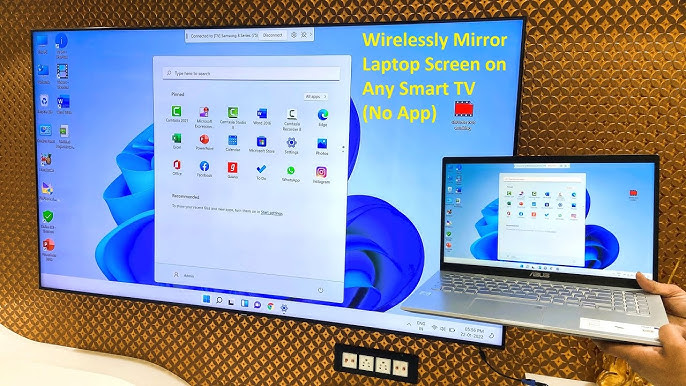
Mirroring your computer screen to a smart TV can enhance your viewing experience. Most modern computers and smart TVs have built-in features for screen mirroring. These features allow you to share your screen without extra software or cables. Using built-in tools is usually fast, simple, and reliable. Here, we explain how to mirror your screen using these native options.
Windows Screen Mirroring
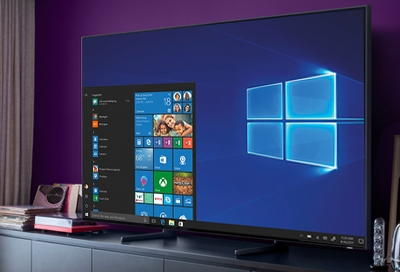
Windows has a feature called “Project” for screen mirroring. First, ensure your PC and smart TV are on the same Wi-Fi network. Then, press Windows key + P on your keyboard. A sidebar appears with several options. Choose Connect to a wireless display. Your PC will search for available devices.
Select your smart TV from the list. Your TV may ask for permission. Accept the request to start mirroring. You can choose to duplicate or extend your screen. To stop mirroring, press Windows key + P again and select Disconnect.
Mac Airplay Setup
Mac computers use AirPlay for screen mirroring. Make sure your Mac and smart TV are connected to the same Wi-Fi. On your Mac, click the AirPlay icon in the menu bar. If the icon is not visible, enable it in System Preferences under Displays.
Select your smart TV from the AirPlay list. Your TV will ask for permission to connect. Accept it to start mirroring. You can choose to mirror your Mac’s display or use the TV as a separate display. To end AirPlay, click the AirPlay icon again and choose Turn Off AirPlay.
Credit: www.samsung.com
Use Third-party Apps
Using third-party apps to mirror your computer screen to a smart TV offers a flexible and easy solution. These apps support different devices and help you connect without cables. They often provide extra features like screen recording and multi-device support.
Many apps work well on Windows, Mac, Android, and iOS. Some are free, while others have paid options with more functions. These apps make the mirroring process smooth and accessible for most users.
Popular Mirroring Applications
Several apps stand out for their reliability and user-friendly design. AirServer supports various platforms and delivers high-quality streaming. ApowerMirror offers easy screen sharing with added control features. LetsView is free and simple, perfect for casual use. Reflector works well with multiple devices and offers good performance. Choose an app that fits your device and needs.
Setting Up And Troubleshooting
Start by installing the chosen app on both your computer and smart TV. Connect both devices to the same Wi-Fi network. Open the app on your computer and select your smart TV from the device list. Follow the on-screen instructions to start mirroring.
If the connection fails, check your Wi-Fi settings and app permissions. Restart both devices and try again. Ensure your firewall or antivirus is not blocking the app. Keep the app updated to avoid bugs. These steps usually fix most common issues.
Optimize Viewing Experience
Optimizing your viewing experience is key to enjoying content mirrored from your computer to your smart TV. Clear images and smooth video make watching more fun. Small tweaks can greatly improve how things look and play on your TV screen.
Adjust Display Settings
Start by adjusting your computer’s display settings. Change the screen resolution to match your TV’s native resolution. This prevents blurry or stretched images. Set the refresh rate for smoother motion. Brightness and contrast controls also help improve picture quality. Make sure the aspect ratio fits your TV screen to avoid black bars or cut-off edges.
Improve Connection Stability
Use a strong Wi-Fi signal or a wired connection to reduce lag and interruptions. Place your router near your TV and computer for better signal strength. Avoid using too many devices on the same network. Close apps on your computer that use internet bandwidth. A stable connection keeps the mirrored image clear and the video playback smooth.
Credit: www.asurion.com
Frequently Asked Questions
How Do I Mirror My Computer To A Smart Tv?
To mirror your computer to a smart TV, use built-in features like Miracast or AirPlay. Connect both devices to the same Wi-Fi network, then select the TV from your computer’s display settings or casting options.
What Are The Best Apps For Mirroring Pc To Smart Tv?
Popular apps for mirroring include Google Chromecast, AirServer, and LetsView. These apps offer easy setup, smooth streaming, and compatibility with most smart TVs and computers.
Can I Mirror A Windows Pc To Any Smart Tv?
Most smart TVs support Windows PC mirroring via Miracast or HDMI. Ensure both devices support the same technology and are on the same network for seamless connection.
Is Wi-fi Required To Mirror A Computer Onto A Smart Tv?
Yes, Wi-Fi is usually required for wireless mirroring methods like Miracast or AirPlay. Wired connections using HDMI cables do not need Wi-Fi but require physical cables.
Conclusion
Mirroring your computer to a smart TV is simple and useful. It lets you share videos, photos, and work on a bigger screen. Use the right tools and follow easy steps for smooth connection. Troubleshooting is quick if you face any issues.
Enjoy watching or working with a larger view anytime. Keep practicing, and it will become second nature. This skill makes your devices work better together every day.