
Have you ever wished you could watch the same show on two smart TVs at once without moving devices around? Mirroring your screen to two smart TVs can make this possible.
Whether you want to share a movie with family in different rooms or display a presentation on multiple screens, knowing how to mirror two smart TVs can save you time and hassle. In this guide, you’ll discover simple, effective ways to set up screen mirroring that anyone can follow.
Ready to make your viewing experience smoother and more connected? Let’s dive in.
Requirements For Mirroring
Mirroring two smart TVs requires some key elements to work smoothly. These elements ensure the content displays clearly on both screens. Preparing these basics avoids common issues and improves your viewing experience.
Compatible Devices
Both smart TVs must support screen mirroring technology. Popular standards include Miracast and AirPlay. Check if your TVs have these features built-in. The devices you use to mirror, like smartphones or laptops, must also support these standards.
Network Setup
Both TVs need to connect to the same Wi-Fi network. This connection allows devices to communicate and share content. Use a stable and fast internet connection to reduce lag. Avoid public or guest networks, as they may block mirroring functions.
Necessary Apps And Software
Some TVs require specific apps to enable mirroring. Examples include Samsung Smart View or LG Screen Share. Install these apps on your smartphone or computer. Keep your TV’s software updated to the latest version for better compatibility.
Preparing Your Smart Tvs
Preparing your smart TVs is the first step to mirror two screens successfully. Both TVs need specific settings to work together. These settings help your TVs connect and share content smoothly. Follow the steps below to get your smart TVs ready.
Connecting To The Same Network
Both smart TVs must connect to the same Wi-Fi network. This allows them to communicate without issues. Go to each TV’s settings menu and find the network section. Select your home Wi-Fi and enter the password. Check that both TVs show they are connected to the same network name. This step is crucial for mirroring to work.
Enabling Screen Mirroring
Turn on the screen mirroring feature on both smart TVs. This option may have different names like “Miracast” or “Smart View.” Find it in the settings under connections or display options. Activate the feature on both TVs. This allows them to discover and connect to each other for mirroring. Without this, your TVs will not share the screen.
Updating Firmware
Check if your smart TVs have the latest firmware updates. Firmware controls how your TV operates and supports new features. Go to the settings menu and look for software update options. Download and install any available updates. Updated TVs work better and reduce connection problems during mirroring.
Mirroring From A Smartphone
Mirroring from a smartphone lets you show your phone’s screen on two smart TVs. This way, you can share videos, photos, or apps easily. It makes watching together more fun and simple. Many smartphones and smart TVs support this feature without extra devices.
Using Built-in Casting Features
Most smartphones have built-in casting tools. Android phones use “Cast” or “Screen Mirroring.” Apple devices use “AirPlay.” Both work well with compatible smart TVs.
Start by connecting your phone and TVs to the same Wi-Fi network. Open the casting feature on your phone. Select the first TV from the list to start mirroring. Then, repeat the process for the second TV.
Some smart TVs allow multi-screen casting. Check your TV settings to enable this feature. This method uses less power and offers smooth streaming.
Third-party Apps For Dual Tv Streaming
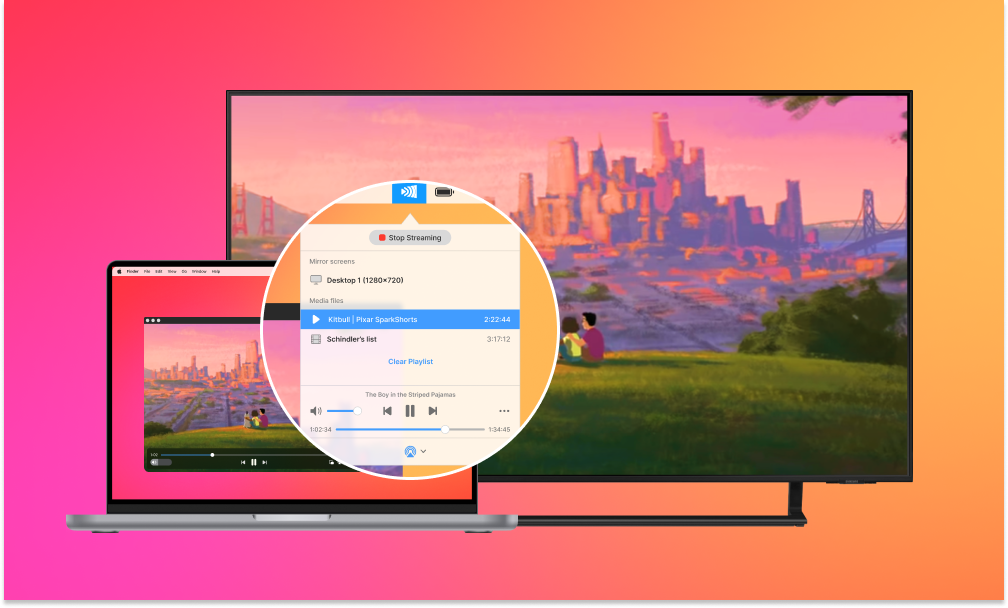
If built-in features do not support two TVs, use third-party apps. Apps like “ApowerMirror” and “LetsView” can mirror your screen to multiple devices.
Download the app on your smartphone and install it on both smart TVs. Connect all devices to the same Wi-Fi network. Follow the app’s instructions to link each TV.
These apps often support both Android and iOS devices. They provide extra controls and options for better streaming. Some apps are free, while others offer premium features.
Credit: mac.eltima.com
Mirroring From A Laptop Or Pc
Mirroring content from a laptop or PC to two smart TVs lets you share videos, presentations, or games easily. It creates a larger viewing experience. You can choose between wired or wireless methods depending on your setup and devices.
Using Hdmi Splitters
HDMI splitters send the laptop’s video signal to two TVs at once. Connect one end to your laptop’s HDMI port. Then, connect the splitter’s outputs to each TV. Both TVs will show the same screen without delay. This method works well for high-quality video and sound. Make sure your laptop supports HDMI output.
Wireless Mirroring Tools
Wireless tools like Miracast, Chromecast, or third-party apps mirror your screen without cables. Your laptop and TVs must be on the same Wi-Fi network. Open the mirroring option on your laptop and select both TVs one after another. Some apps allow simultaneous streaming to multiple devices. Wireless mirroring offers more freedom to move around your room.
Adjusting Display Settings
Adjust display settings for the best viewing on both TVs. Open your laptop’s display settings menu. Choose “Duplicate” mode to mirror the same screen on both TVs. You can also adjust the resolution to match the TVs’ native screens. This helps avoid blurry or stretched images. Check audio settings to send sound to both TVs if needed.
Troubleshooting Common Issues
Mirroring two smart TVs can be simple, but sometimes issues arise. Troubleshooting helps solve these common problems quickly. Understanding what causes these issues can improve your experience. Here are some common problems and easy fixes.
Connection Problems
Check both TVs are on the same Wi-Fi network. Different networks cause connection failures. Restart your router and TVs to refresh the connection. Make sure screen mirroring is enabled on both TVs. Use the latest firmware updates to avoid bugs. If the problem persists, try using a different mirroring app.
Audio And Video Sync Issues
Audio and video may not play together perfectly. This happens due to slow processing or weak signals. Restart both TVs to reset the audio and video sync. Lower the video quality to reduce lag. Check the HDMI or casting device for loose connections. Adjust audio delay settings in the TV menu if available.
Latency And Lag Solutions
Lag causes delays between actions and display. It frustrates users during mirroring. Reduce the distance between the TVs and the router. Use a wired connection if possible for faster speed. Close other apps using internet to free bandwidth. Lower the video resolution to improve speed. Update the TV software to fix performance issues.

Credit: www.cart2india.com
Tips For Seamless Streaming
Streaming content on two smart TVs at the same time can be tricky. Smooth playback needs some careful planning. Small adjustments can help prevent buffering and screen lag. Follow these tips for a better streaming experience on both TVs.
Optimizing Network Performance
Strong internet is key for streaming on two TVs. Use a fast Wi-Fi router with dual-band support. Place the router near both TVs to reduce signal loss. Avoid walls and metal objects between devices. Limit other internet use while streaming to save bandwidth.
Managing Multiple Streams
Running two streams needs careful management. Use apps that support multiple devices. Keep streaming quality balanced to avoid overloading the network. Pause one stream if the other buffers. Close unused apps on the TVs to free up memory.
Maintaining Device Compatibility
Check that both smart TVs support the same streaming apps. Keep software updated on both devices to avoid glitches. Use the same streaming platform for easier syncing. Test the setup before starting long viewing sessions. Compatibility prevents unexpected streaming errors.
Credit: blog.airsquirrels.com
Frequently Asked Questions
How Can I Mirror Two Smart Tvs Simultaneously?
To mirror two smart TVs at once, use a dual HDMI splitter or a wireless screen mirroring app supporting multiple devices. Ensure both TVs and your device are on the same Wi-Fi network for smooth connectivity and synchronized display.
What Devices Support Mirroring To Multiple Smart Tvs?
Most modern smartphones, tablets, and laptops support screen mirroring to multiple smart TVs. Devices with Miracast, AirPlay, or Chromecast features typically allow simultaneous casting. Check your device’s compatibility and use apps or hardware that enable multi-screen mirroring.
Is Wi-fi Important For Mirroring Two Smart Tvs?
Yes, Wi-Fi is crucial. Both smart TVs and your source device must connect to the same stable Wi-Fi network. A strong network ensures seamless streaming without lag or disconnections when mirroring to multiple TVs.
Can I Use Chromecast To Mirror To Two Tvs?
Chromecast natively supports casting to one TV at a time. To mirror to two TVs, use a Chromecast Audio or HDMI splitter combined with Chromecast, or use third-party apps that support multi-device casting.
Conclusion
Mirroring two smart TVs is easier than it seems. Follow the right steps carefully. Use compatible devices and apps for smooth connection. Check your Wi-Fi for a strong signal. Adjust settings on both TVs for best results. Practice makes perfect.
Enjoy sharing your screen with friends or family. This simple setup saves time and adds fun. Keep experimenting to find what works best. Now, you can watch your favorite content on two screens at once.


